Automating VK and Telegram Posts: A Step-by-Step Proxy Playbook for Agencies
文章目录
- 1. introduction
- 2. preparation
- 3. key concepts
- 4. step 1: design your account architecture and policy
- 5. step 2: prepare access, profiles, and security
- 6. step 3: configure proxies and network profiles
- 7. step 4: connect smmplanner to vk and telegram with proxies in mind
- 8. step 5: write your own vk and telegram scripts (official apis)
- 9. step 6: ip rotation, queues, and load distribution
- 10. validate your setup
- 11. common mistakes and fixes
- 12. extras
- 13. faq
- 14. conclusion
1. Introduction
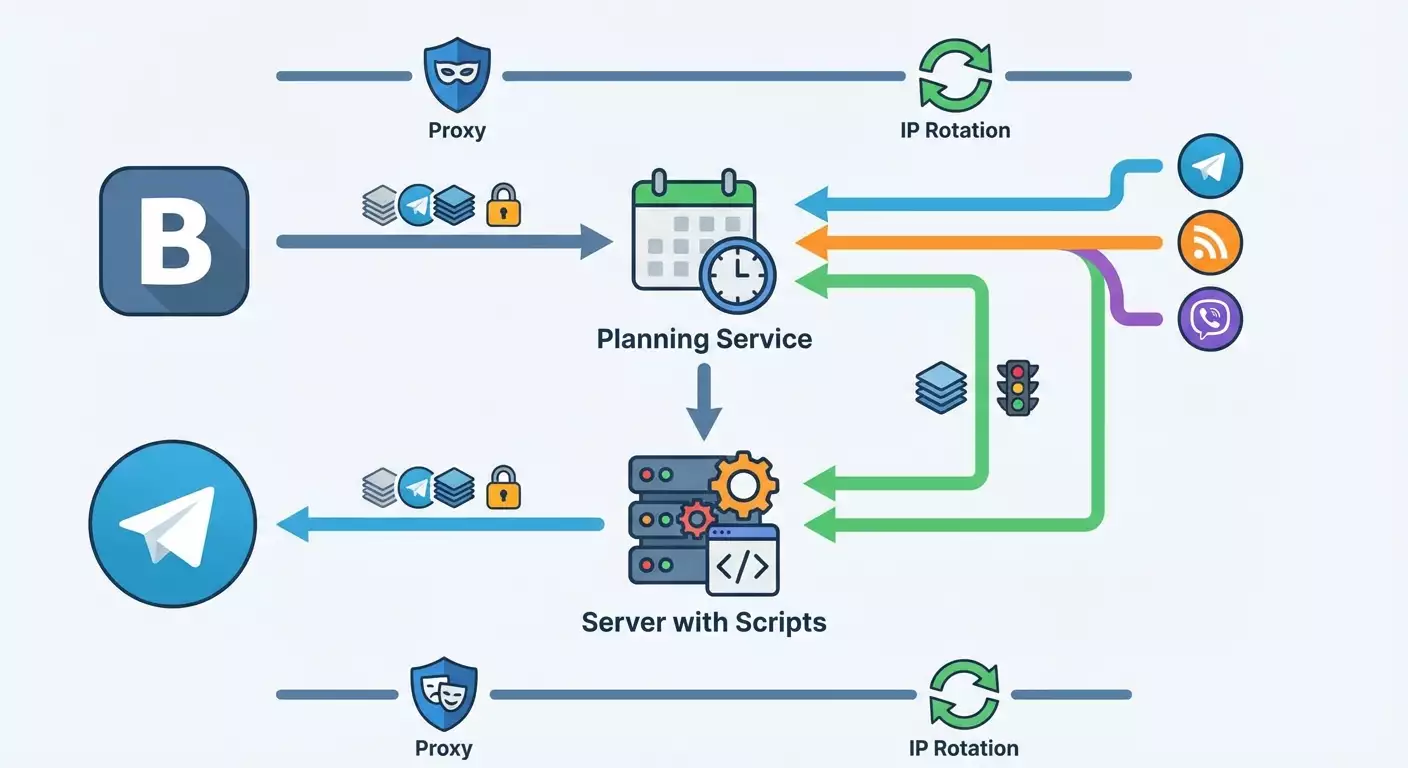
In this step-by-step guide, you’ll set up a fully working system to automate publishing to VK and Telegram for an agency managing 50+ client accounts. You’ll get a clear architecture, safe proxy and IP rotation practices, a working SMMplanner integration, a set of your own fallback scripts, a content upload and load distribution policy, and more. The result: stable posting of updates, stories, and media with minimal risk of blocks or breakdowns.
This guide is beginner-friendly with extras for advanced users. We explain everything in plain English, cover the key terms, and give you ready-to-run commands and code snippets. If you’re already experienced, jump to the sections on optimization, queues, API rate limiting, and monitoring for fine-tuning.
You don’t need deep programming skills to start. Comfortable computer use, basic file system understanding, a modern browser, and the discipline to follow instructions are enough. Time required: 1–2 working days—3–5 hours for prep, 3–6 hours for initial tool setup, and 2–4 hours for testing and debugging.
You’ll learn how to: set up proxies for agencies, connect VK and Telegram to SMMplanner, write simple posting scripts using official APIs, safely manage 50+ accounts, configure IP rotation and load distribution, verify the setup, and fix common issues. Each action in this practical guide leads to a concrete outcome.
2. Preparation
Here’s everything you’ll need so you won’t miss a thing and can save time.
2.1 Required tools, software, and access
- VK accounts: access to client communities with publishing rights. Use community tokens rather than managers’ personal tokens.
- Telegram: client channels where you’re an admin, and dedicated bots for auto-posting or SMMplanner integration.
- SMMplanner: an active scheduling account with VK and Telegram access and permissions to connect the required properties.
- Proxies: a set of static residential or mobile proxies—one per account or community for working sessions; plus a pool of rotating proxies for parsing and fallback scenarios.
- Anti-detect/profiled browser or separate Chrome/Firefox profiles: to isolate sessions, cookies, and 2FA. Isolation matters more than trying to “trick” security.
- Automation runtime: Python 3.10+ or Node.js LTS. This guide shows examples in Python.
- Execution environment: a Linux server (e.g., Ubuntu 22.04 LTS) or a powerful workstation running 24/7. A VPS works too.
- Content storage: a structured cloud or local folder for images, video, and CSV/JSON schedules. A NAS or cloud drive is handy.
- 2FA: a TOTP authenticator (e.g., a mobile app). Enable it for all critical accounts.
2.2 System requirements
- OS: Windows 10/11, macOS 12+, or Linux. For servers, Linux is preferred.
- CPU: 4 cores or more. For 50+ accounts, 8+ threads is better.
- RAM: at least 8 GB; 16 GB is ideal.
- Disk: 50–200 GB for media and logs.
- Stable internet: at least 50 Mbps. Stability matters for uploads.
2.3 What to download, install, and configure
- Install Python 3.10+ and pip. On Linux, use your system package manager.
- Create a Python virtual environment to isolate dependencies.
- Install libraries: requests or httpx, aiohttp, python-telegram-bot or plain HTTP to the Telegram Bot API, and a scheduler (APScheduler) if needed.
- Prepare a profiled browser or separate Chrome/Firefox profiles. Create a profile per working account and set its proxy.
- Set up a password manager and 2FA. Save backup recovery codes.
- Create systemd services or cron jobs to run scripts on schedule.
2.4 Backups
- Export and store safely: VK community tokens (if used), Telegram bot tokens, publishing schedules, message templates, media files, and proxy configs.
- Back up critical task CSV/JSON files daily. Keep at least 7 days of retention.
- Create an encrypted archive with configuration (keys and tokens). Store it separately from the main server.
Tip: Maintain a master sheet: Client, Platform, Channel/Community ID, Owner, Proxy, Posting window, Notes. It makes audits and migrations faster.
3. Key concepts
3.1 Terms in plain English
- Proxy: an intermediary server for your requests. Helps separate environments and lowers the risk of “suspicious activity” across multiple accounts.
- IP rotation: changing your external IP on a schedule. Useful for parsing and general tasks. For logins and posting, stability is usually better.
- Anti-detect/profile isolation: isolating browser profiles (cookies, localStorage, fingerprints). The goal is safe segmentation—not bypassing platform rules.
- Token: an API access key. For VK it’s a community or service token. For Telegram it’s a bot token.
- API limits: request rate limits. Exceeding them leads to errors or temporary blocks.
- Task queue: an ordered pipeline for posts to respect limits and spread load.
3.2 How it works in practice
- Use official APIs and tools. It reduces block risks.
- Separate logins from posting. Log in from a stable IP; post via SMMplanner or API with rate limits respected.
- Bind one stable proxy per account/community for login sessions. For API uploads you can use a central server without constant IP changes.
- Keep passwords out of scripts. Use tokens and environment variables.
3.3 What to keep in mind
- VK and Telegram have rules and limits. Schedule posts so they don’t look spammy. Content should be unique and relevant.
- Proxies won’t fix bad content or spam. Follow platform policies and user interests.
- Stability beats speed. Consistent posting is better than dumping everything at once.
⚠️ Note: Don’t use proxies or profiles to mask prohibited activity, inflate metrics, run fake accounts, or bypass platform restrictions. This guide is about compliant automation for agencies with real clients and official access.
4. Step 1: Design your account architecture and policy
Goal
Map accounts and channels, assign roles, decide where to use SMMplanner vs. your scripts, and set posting rules, limits, and load distribution. This is your stability foundation.
Step-by-step
- Open your master sheet and add columns: Platform, Channel/Community, Access type (admin/editor), Token/Bot (yes/no), Proxy (host:port), Posting window (local time), Posts per day, Priority level.
- For each client, list platforms: VK community, Telegram channel, any extra chats or discussions. Include direct IDs: VK community id, Telegram channel chat_id or @username.
- Decide which properties post via SMMplanner. Recommended: regular posts and stories via SMMplanner; custom formats, integrations, and bulk updates via your scripts.
- Assign a stable proxy for each admin login session and each working browser profile. Record the IP and provider.
- Define posting windows. For example, 09:00–12:00 and 17:00–20:00 local to the client’s audience. Spread clients across windows to avoid peaks.
- Set limits: Telegram—no more than 1 message per second per chat; respect global limits and add pauses. VK API—no more than 3 requests per second per token (conservative). Add safety delays of 100–300 ms.
- Define a fallback. If SMMplanner is down, your scripts post from the same queue. Agree on a task format: CSV or JSON with channel, text, media, date, priority.
- Document roles: who adds tasks, who approves content, who monitors logs, who handles incidents. Include contacts and response times.
Important
Key point: A single central queue and unified limits prevent spikes and blocks. Ensure no parallel posting under the same token.
Tip: Tag each client and use the tag in file names and schedule branches. Debugging becomes easier.
Expected outcome
You have a complete account map, stable proxies assigned, limits and posting windows defined, and fallback scenarios documented. Your master sheet is filled and approved.
Common issues and fixes
- Issue: Missing Telegram chat_id. Cause: channel not initialized. Fix: add the bot as channel admin, send a test message to the bot from the channel, or use the Bot API to fetch chat_id.
- Issue: Time conflicts between clients. Cause: everyone wants prime time. Fix: stagger posts by 10–20 minutes and use priority queues.
✅ Check: Each channel in the master sheet has a posting window, posting method (SMMplanner/Script), proxy, token/bot, limits, and a responsible owner.
5. Step 2: Prepare access, profiles, and security
Goal
Set up and organize access, enable 2FA, create isolated browser profiles, and store tokens securely. This reduces compromise risk and extra login prompts.
Step-by-step
- Enable 2FA on all critical accounts and platforms. Store backup recovery codes offline.
- Create separate browser profiles—one profile per client or community. Name them like: ClientName_VK_Community, ClientName_TG_Channel.
- Assign a stable proxy to every profile. Set host, port, username, and password if needed.
- Disable WebRTC leaks in settings or with extensions so your real IP doesn’t bypass the proxy.
- Log in to VK from the corresponding profile and confirm the login. Ensure device notifications are cleared and the device is trusted.
- For Telegram, add the bot as a channel admin. Store the bot token in a secure vault, not in code.
- Create a config file, config.json, with sections: vk_tokens, tg_tokens, proxies, schedule, limits. Store it in a protected directory with OS-level permissions.
Important
Key point: One account—one stable login IP. Don’t change it unless necessary. It reduces device checks and confirmation prompts.
Tip: Use environment variables for tokens (e.g., TG_BOT_TOKEN and VK_COMMUNITY_TOKEN). In scripts, read them from os.environ.
Expected outcome
You can log into VK and manage Telegram channels without extra confirmations, and your tokens and proxies are recorded and stored securely.
Common issues and fixes
- Issue: Frequent VK login checks. Cause: changing IPs or suspicious patterns. Fix: pin a stable proxy, reduce login frequency, avoid parallel logins from multiple locations.
- Issue: Telegram bot doesn’t post. Cause: bot lacks admin rights. Fix: grant the bot admin rights in the channel.
✅ Check: You can log in to VK from each profile; every Telegram channel has a bot with proper rights; the config and tokens are accessible to scripts; environment variables are read correctly.
6. Step 3: Configure proxies and network profiles
Goal
Prepare proxy pools, test speed and leaks, bind proxies to profiles, and establish an IP rotation policy. This ensures stable logins and safe media uploads.
Step-by-step
- Compile a proxy list: host, port, authentication, type (HTTP/SOCKS5), location. Split into two groups: stable for logins and panel posting; rotating for parsing and non-constant tasks.
- Test proxies. From each browser profile, check an IP lookup service to verify geolocation and stability.
- Block DNS and WebRTC leaks. Install an extension to block WebRTC if available, and use secure DNS.
- Bind one stable proxy to each profile. Don’t mix clients. Record profile–proxy pairs in your master sheet.
- Define rotation policy. For logins—no rotation or very rare changes with a planned transition window. For backend tasks—rotate every 10–30 minutes if the task allows it.
- Add config parameters: proxy_per_account, rotation_interval, fallback_proxy. Set backup proxies in case the primary fails.
Important
Key point: Excessive rotation harms session trust. For VK and Telegram, stability is best—especially for logins and token issuance.
Tip: If your office IP has a good reputation, use it for SMMplanner and management. Use proxies only when you need segmentation or remote access.
Expected outcome
Proxies are verified, profiles are bound to stable IPs, rotation policy is defined, and backups are prepared and added to your config.
Common issues and fixes
- Issue: Slow publishing. Cause: slow proxy. Fix: switch to a faster provider, ideally in the same country as the audience.
- Issue: Telegram send errors. Cause: proxy blocks specific hosts/protocols. Fix: switch proxy type (HTTP/SOCKS5) or run API requests without a proxy from a trusted server.
✅ Check: Each profile’s IP check shows the expected location; VK and Telegram requests complete without errors; upload speeds are acceptable for media.
7. Step 4: Connect SMMplanner to VK and Telegram with proxies in mind
Goal
Connect and configure SMMplanner for VK and Telegram, sync tokens, and set schedules so most content goes out without scripts.
Step-by-step
- Log in to SMMplanner from the profiled browser using your stable proxy. This reduces extra confirmations during platform authorization.
- Connect VK communities. Click Add VK account, follow the prompts, and grant access. Choose communities rather than personal profiles for posting.
- Connect Telegram. Click Add channel, authorize the bot or bind the channel, and confirm admin rights.
- Create a project or property group per client. This makes bulk planning manageable.
- Set posting schedules. For each channel, choose days, times, and post counts based on your master sheet’s posting windows.
- Add test posts with simple text and small images. Confirm they arrive on time.
- Set up content templates: variables, captions, hashtags, UTM tags. Check previews to ensure formatting looks right.
- Enable error and report notifications. Route alerts to operators so they can react quickly.
Important
Key point: SMMplanner publishes via its own infrastructure, not your proxy. The proxy matters during authorization and management; the service handles delivery.
Tip: For large queues, use CSV import into SMMplanner. Prepare data in advance: date, time, text, media path.
Expected outcome
VK and Telegram are connected in SMMplanner with working schedules. Test posts are delivered, and notifications are configured. Most content now goes out hands-free.
Common issues and fixes
- Issue: VK authorization error. Cause: unstable proxy. Fix: re-authorize from a stable IP or replace the proxy.
- Issue: Telegram doesn’t accept posts. Cause: missing rights or wrong channel selection. Fix: ensure the bot is an admin of the correct channel and it’s properly selected in the dashboard.
✅ Check: Each connected channel has at least one successful test post from SMMplanner. Statuses are green, no errors.
8. Step 5: Write your own VK and Telegram scripts (official APIs)
Goal
Create fallback posting scripts using official VK and Telegram APIs. Use them for edge cases or temporary scheduling service downtime.
Step-by-step
- Create a Python virtual environment and install requests and aiohttp. Use aiohttp for async sending; requests is fine for simple flows.
- Prepare a config with tokens. Read TG_BOT_TOKEN and VK_COMMUNITY_TOKEN from environment variables. Don’t hardcode tokens.
- Write a Telegram send function. Example: POST to Bot API method sendMessage with chat_id and text; for media use sendPhoto/sendMediaGroup.
- Write a VK post function. Use wall.post with a community token and parameters owner_id, from_group, message, attachments.
- Implement a task queue: read CSV/JSON, validate fields, and schedule sends with buffer time for limits.
- Add rate limiting: max 1 message per second per Telegram channel; max 3 requests per second per VK token. Insert delays between requests.
- Test on two test channels/communities. Use short text and small images to speed up debugging.
Sample code: Telegram sendMessage
Example pseudo-Python: import os, requests; token = os.environ.get('TG_BOT_TOKEN'); url = 'https://api.telegram.org/bot' + token + '/sendMessage'; payload = {'chat_id': '@channel_username', 'text': 'Test post'}; r = requests.post(url, data=payload, timeout=15); print(r.status_code, r.text).
Sample code: VK wall.post
Example pseudo-Python: import os, requests, time; token = os.environ.get('VK_COMMUNITY_TOKEN'); api = 'https://api.vk.com/method/wall.post'; payload = {'owner_id': -123456789, 'from_group': 1, 'message': 'Hello, VK', 'v': '5.199', 'access_token': token}; r = requests.post(api, data=payload, timeout=15); print(r.status_code, r.text); time.sleep(0.5).
Important
Key point: For VK photo uploads, first get an upload_url, then save the upload, and only then attach it to wall.post. Upload media outside peak hours.
Tip: Add JSONL logging: one JSON object per line with time, channel, result, and error. It makes troubleshooting easy.
Expected outcome
Your scripts successfully post to test channels and communities, respect limits, and log results cleanly.
Common issues and fixes
- Issue: 429 Too Many Requests. Cause: rate limits exceeded. Fix: increase delays, add queues, and use exponential backoff.
- Issue: Wrong VK owner_id. Cause: missing minus sign for communities. Fix: use a negative id for groups.
✅ Check: Logs show successful posts; you can see test posts in channels and communities; no rate-limit errors.
9. Step 6: IP rotation, queues, and load distribution
Goal
Set up posting queues, rate limiting, sensible IP rotation for suitable tasks, and automatic process restarts. This gives you scale for 50+ accounts.
Step-by-step
- Create a publishing task queue. JSON format with fields: task id, platform, channel, message, media, publish timestamp, priority.
- Implement a scheduler. Pull tasks periodically, sort by time and priority, check the channel’s posting window, and apply delays.
- Add rate limits per token and per channel. Telegram—max 1 message/sec per channel; VK—max 3 req/sec per token.
- Set up IP rotation for tasks that aren’t login-related and don’t rely on device trust. For example, background checks that don’t violate platform policies.
- Enable retries. On transient errors, retry 3 times with increasing waits: 1s, 3s, 7s. Log each step.
- Configure autostart. On Linux, create systemd services and timers. On Windows, use Task Scheduler.
- Add alerts. If a channel logs 3+ posting errors within 10 minutes, notify the owner.
Important
Key point: Prefer stable IPs for posting. Rotation is fine for secondary tasks, but stability builds trust for posting.
Tip: Stagger posts by a few minutes per client. Example: Client A at 10:02 and 12:17; Client B at 10:05 and 12:22. Small offsets reduce peaks.
Expected outcome
Tasks are published in order, limits are respected, retries kick in on errors, and services restart automatically after reboots.
Common issues and fixes
- Issue: Bottleneck on a single token. Cause: too many tasks on one property. Fix: split across multiple community tokens or widen the posting window.
- Issue: Long queue. Cause: heavy media. Fix: optimize images, use WebP, or reduce resolution to a sensible size.
✅ Check: With 50 tasks scheduled for the next hour, posting proceeds smoothly with no 429s; the queue drains evenly; services auto-restart as needed.
10. Validate your setup
Checklist
- SMMplanner is posting to VK and Telegram on schedule.
- Fallback scripts post correctly to test channels and communities.
- Queues and limits work; no mass 429s or captchas.
- Proxies are stable; profiles are bound; logins don’t ask for extra confirmations.
- Error notifications are set up.
- Configs, tokens, and schedules are saved and backed up.
How to test
- Plan 12 posts/day across 3 properties. Stagger times.
- Cut internet for 30 seconds or restart the script service. Ensure tasks aren’t lost and the queue recovers.
- Increase load. Add 20 more tasks. Check that added delays don’t cause blocks.
Success metrics
- Over 99 percent successful posts per day.
- Deviation no more than 5–10 minutes from the planned window under load.
- No mass login confirmations or captchas.
Tip: Send a daily report: task count, success rate, top errors, average delay. You’ll spot trends and react fast.
11. Common mistakes and fixes
- Issue: Blocked for suspicious activity. Cause: frequent IP changes and parallel logins. Fix: pin a stable IP, reduce logins, use sessions and 2FA, avoid rotation for logins.
- Issue: 429 errors. Cause: exceeding API limits. Fix: add delays and queues, spread load across multiple tokens, enable backoff retries.
- Issue: Invalid media format. Cause: unsupported format or file too large. Fix: convert to supported formats and keep files around 2–5 MB where possible.
- Issue: Telegram bot doesn’t post. Cause: missing admin rights. Fix: check permissions and ensure the correct channel is connected.
- Issue: VK wall.post error. Cause: wrong owner_id, missing rights, or missing from_group. Fix: use a negative id for communities, set from_group=1, and ensure the token has permissions.
- Issue: Token leaks. Cause: tokens in code or public repos. Fix: store in environment variables, use encrypted vaults, rotate regularly.
- Issue: Duplicate posts. Cause: retries without idempotency. Fix: add an idempotency_key to each task and check if it was already published.
⚠️ Note: Never buy or use third-party accounts or tokens. That violates platform rules and often triggers instant sanctions. Work only with client properties under contract with explicit access.
12. Extras
Advanced settings
- Async sending: use aiohttp and asyncio for parallel sends with strict rate limits.
- Flexible queues: implement priorities and delayed tasks so urgent posts jump the line without breaking the schedule.
- Media quality control: auto-compress images and videos to acceptable parameters before upload.
Optimization
- Cache upload_url for VK briefly to cut redundant requests.
- Pre-validate content: text length, banned symbols, valid links—before queuing.
- Metrics: track post counts, error types, average delays, retry percentages. Define publishing SLOs.
What else to build
- Content pipeline: from brief to approval to automatic export into SMMplanner or your script queue.
- Templating: variables for dates, names, and promos to clone campaigns fast.
- Media library catalog: tags, usage rights, license expiration. Helps with audits and compliance.
Tip: Separate prod and test. With dedicated test channels and communities, you can ship new features without risking client properties.
13. FAQ
- How do I know if I need proxies when I have an office IP? If it’s stable and reputable, it may be enough. Use proxies to isolate sessions and for remote work.
- Can I do everything via SMMplanner? Yes, for most tasks. Scripts are useful as a fallback and for special cases.
- Do I need anti-detect tools? You need profile isolation. Use browser profiles and stable IPs. Don’t try to trick detection systems.
- How many proxies for 50+ accounts? At least one stable proxy per account if you need separate sessions. For API posting, you can centralize.
- How to avoid 429 errors? Throttle requests, use queues and delays, and distribute across time and tokens.
- What if login gets blocked? Check IP, enable 2FA, confirm the device, reduce login frequency, and contact support via official channels if available.
- Can I post the same content to 20 channels? You can if it’s the client’s content and it’s approved. Stagger times and vary the text to avoid looking spammy.
- How should I store tokens? In environment variables and encrypted vaults. Never commit tokens to repos.
- How do I test safely? Use separate test channels, communities, test tokens, and limited permissions.
- What if SMMplanner is down? Switch to your fallback scripts. Keep a fresh local queue ready.
Tip: Review access regularly. Remove unnecessary admins, archive old tokens, and verify proxy validity.
14. Conclusion
You’ve set up a professional publishing automation system for VK and Telegram. You now have a master sheet, stable proxies and profiles, SMMplanner schedules, official API fallback scripts, a task queue, load distribution, and monitoring. This architecture gives you resilience, scalability, and control.
Next, grow your content pipeline, add automatic media optimization, bring in advanced campaign analytics, and run A/B tests and personalization. Build your processes around content quality and respect platform policies. Your new technical foundation will only amplify results.
⚠️ Note: Any automation must comply with platform rules and local laws. Work transparently, under contracts, and with legitimate access. This protects you, your clients, and your agency’s reputation.
Tip: Document your incident playbook: who responds, where to look for logs, whom to contact, and how to switch to the fallback path fast. It saves hours when it matters most.