How to Scrape Google Maps for Local SEO: A Step-by-Step Guide with Mobile Proxies
Makale içeriği
- 1. introduction
- 2. preparation
- 3. core concepts
- 4. step 1: plan your queries and data structure
- 5. step 2: set up your environment and scrapy project
- 6. step 3: configure mobile proxies and geolocation
- 7. step 4: fetch local google results (tbm=lcl)
- 8. step 5: extract business details (address, phone, category, url)
- 9. step 6: gather review snippets and basic reputation metrics
- 10. step 7: save, clean, and normalize your data
- 11. step 8: automation, scheduling, and monitoring
- 12. verify your results
- 13. common pitfalls and fixes
- 14. extra possibilities
- 15. faq
- 16. conclusion
1. Introduction
You’re about to build a complete, working pipeline: from setting up your environment to exporting tables with local competitors from Google Maps results—company names, ratings, review counts, categories, addresses, phone numbers (if available), plus short review snippets. You’ll learn how to set geolocation through mobile proxies to see the local results for your target city and review legal considerations to work safely and responsibly.
This guide is for junior SEO specialists and marketers, local business owners, analysts, and developers who want to gather competitor data. We’ll use Scrapy and Beautiful Soup and explain every step in plain English.
What you need to know: basic computer skills, installing apps, and a little Python helps—but isn’t required. All commands and examples are provided. Follow along and you’ll get results.
How long it takes: 4–8 hours to set everything up and run your first batch, depending on your experience. Allow another 4–6 hours for debugging and enhancements. You can complete it in 1–2 working days.
Tip: Work through sections in order. After each step, run the “✅ Check” to confirm everything works before moving on.
2. Preparation
Required tools and access
- A computer with Windows, macOS, or Linux.
- Python 3.10 or 3.11 installed.
- pip package manager.
- Virtual environment (venv) to isolate dependencies.
- Libraries: Scrapy, Beautiful Soup (bs4), Requests, lxml, Pandas.
- Access to a mobile proxy provider with city-level geotargeting. You’ll need login/password or a token.
- Optional: a Google Cloud account for Places API (recommended for compliant and stable details/reviews where possible).
System requirements
- 2–4 GB RAM free for smooth work.
- 5–10 GB of free disk space.
- Stable internet. Mobile proxies typically need a reliable connection.
What to download and install
- Install Python 3.10–3.11. During setup, check “Add Python to PATH.”
- Open Terminal or Command Prompt. Create a project folder, for example gmaps_local.
- Create a virtual environment: python -m venv .venv
- Activate the environment: Windows: .venv\Scripts\activate, macOS/Linux: source .venv/bin/activate
- Install packages: pip install scrapy beautifulsoup4 requests lxml pandas
Backups
If you already have a working folder or query templates, back them up before you start. Save intermediate CSV exports in a separate backup folder so you don’t lose results while debugging.
⚠️ Attention: Don’t modify system Python directories. Install all dependencies inside the virtual environment. This avoids version conflicts and makes rollback easy.
✅ Check: Run python --version and pip --version. Then, inside the activated environment, run python -c "import scrapy, bs4, requests, lxml, pandas; print('OK')". You should see OK.
3. Core concepts
Key terms
- Local SEO — optimization for geography-based searches (maps and local results).
- Local Pack/Local Finder — the map block and business list for “[service] [city]” queries.
- NAP — Name, Address, Phone; core contact data for local SEO.
- Mobile proxies — proxies via cellular networks (3G/4G/5G) with IPs in different cities; they let you see truly “local” search results.
- Scrapy — a framework for building spiders, handling requests, queues, and pipelines.
- Beautiful Soup — a library for parsing HTML; great for extracting elements from markup.
- Limits and legality — respect site terms, robots.txt, data protection laws, and fair API use.
How it works
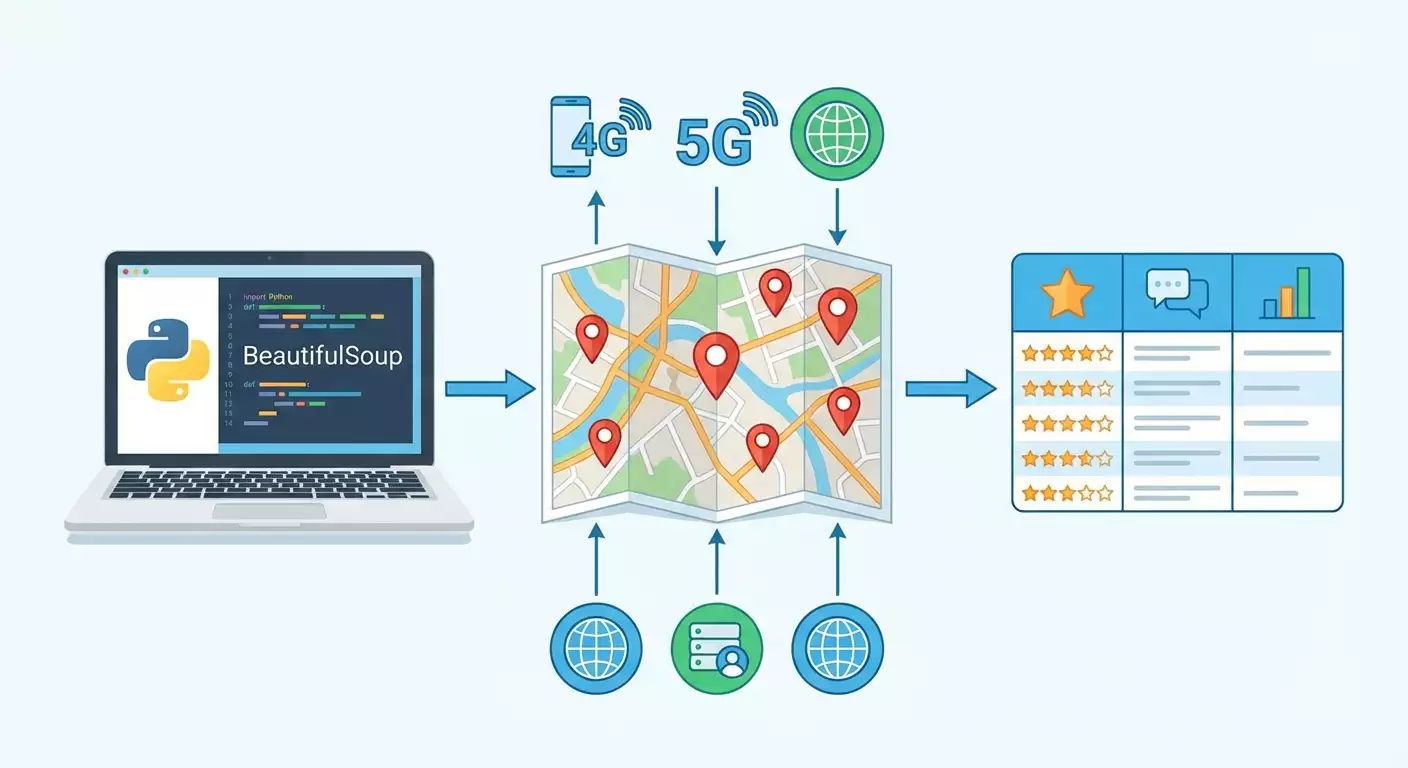
We’ll send requests to Google’s local search results pages (tbm=lcl), fetch HTML, and extract publicly visible data: names, ratings, review counts, addresses, phones, categories, and short review snippets if they appear in static HTML. For stability and compliance, we recommend combining this with the official Places API for details and reviews. Mobile proxies make it possible to view the correct city’s local results even if you’re elsewhere. We won’t bypass CAPTCHA or restrictions. If Google shows CAPTCHA or blocks you, stop and use the official API.
What to know before you start
- Google’s markup is dynamic and can change. We’ll write a resilient parser, but you may need to update it.
- Don’t fire too many requests too fast. It’s unethical and can lead to blocks.
- We use proxies to set accurate geolocation—not to evade limits—so we can fairly analyze local competition.
Tip: Start with 1–2 queries and shallow depth; then scale slowly. Early on, stability beats speed.
4. Step 1: Plan your queries and data structure
Goal
Define your search queries, target cities, and data format. You’ll finish with a CSV of queries and cities plus a field checklist for export.
Step-by-step
- Set a goal: e.g., gather competitors for “dentist [city],” “auto repair [district],” “cleaning company [city].”
- Build a keyword list: at least 5–10 phrases per niche. Example: dentist, dental clinic, dental implants, emergency dentist.
- Define geography: cities and districts. Example: Moscow, Saint Petersburg, Kazan, specific neighborhoods within a city.
- Create queries.csv with columns: keyword, city, country_code, language (e.g., en), depth (e.g., 20). Sample row: dentist, Moscow, RU, en, 20.
- Decide on fields to collect: name, rating, reviews_count, category, address, phone, working_hours_snippet, url_snippet, review_snippet, rank (position), query, city, fetched_at.
- Set limits: no more than 1 request every 10–15 seconds per proxy. Overall limit — up to 100 requests per day to start.
Tip: Use a consistent format for city names and languages. For example, Moscow and RU so filtering stays clean.
✅ Check: You have queries.csv with 5–20 rows and a field list for export. Open the file and confirm keyword, city, country_code, language, and depth are filled in every row.
Possible issues and fixes
- Queries too broad → add modifiers like “near me,” “[service] [district],” “24 hours.”
- Too few results → expand to nearby cities or neighboring towns.
5. Step 2: Set up your environment and Scrapy project
Goal
Create a Scrapy project, folder structure, and base files.
Step-by-step
- Inside your activated environment, run: scrapy startproject gmaps_local
- Enter the project folder: cd gmaps_local
- Create a spider: scrapy genspider local_maps_spider google.com
- Create data and logs folders in the project root for CSV and logs.
- Install extras if you skipped earlier: pip install user-agents fake-useragent
- Open settings.py. Set: BOT_NAME = 'gmaps_local', ROBOTSTXT_OBEY = False (for learning), DOWNLOAD_DELAY = 10, CONCURRENT_REQUESTS = 1, and DEFAULT_REQUEST_HEADERS with Accept-Language and User-Agent.
- Create helpers.py for utilities: phone normalization, rating parsing, address cleanup.
⚠️ Attention: ROBOTSTXT_OBEY=True is best practice. With Google in particular, respect the terms. For educational purposes we set conservative limits here, but we strongly recommend using the official API for details.
Tip: Log to a file like logs/run.log to see which requests succeed or fail.
✅ Check: Run an empty spider: scrapy crawl local_maps_spider -O data/test.csv. It should start, create test.csv (may be empty), and finish without import errors.
Possible issues and fixes
- ModuleNotFoundError → activate the environment and verify packages.
- PermissionError on write → run the terminal with sufficient permissions or change the save path.
6. Step 3: Configure mobile proxies and geolocation
Goal
Connect a mobile proxy, verify location, and configure Scrapy to use the proxy with gentle request pacing.
Step-by-step
- From your mobile proxy provider, get: proxy host and port, auth method (user/pass or token), geotargeting options (country, city).
- Check if you can set location in the connection string. Some providers use formats like proxy.provider:port?country=RU&city=Moscow. Confirm parameters with your provider.
- Create a .env at the project root: PROXY_HOST=... PROXY_PORT=... PROXY_USER=... PROXY_PASS=... PROXY_CITY=Moscow PROXY_COUNTRY=RU. Don’t commit it to your repo.
- In settings.py, add DOWNLOADER_MIDDLEWARES and a middleware that sets the proxy via meta. In the spider, pass meta={'proxy': 'http://USER:PASS@HOST:PORT'}.
- Create test_proxy() in proxy_check.py to call a public IP info endpoint and print country and city. If it matches your target city, you’re good.
- In Scrapy, set DOWNLOAD_DELAY=12–15, RANDOMIZE_DOWNLOAD_DELAY=True, RETRY_ENABLED=True, RETRY_TIMES=1–2 to reduce block risk.
- Rotate User-Agents: use a list of real mobile UAs and assign one randomly per request.
Tip: If your provider supports IP rotation by link or timer, don’t rotate more often than every 2–5 minutes to avoid looking suspicious.
✅ Check: Run proxy_check.py. It should show the expected country and city. Then have the spider hit an “IP check” page and verify response headers. If the city matches your plan, geolocation is set.
Possible issues and fixes
- Bad proxy auth → verify username/password or whitelist IP in your provider dashboard.
- Wrong city → confirm the city is supported or choose the nearest large hub.
7. Step 4: Fetch local Google results (tbm=lcl)
Goal
Learn how to build requests to Google’s local results and extract basic result blocks available in static HTML.
Step-by-step
- Build a URL like: https://www.google.com/search?tbm=lcl&hl=en&q=QUERY_STRING. For QUERY_STRING use keyword + space + city. Example: dentist Moscow.
- URL-encode queries (spaces to +). Example: dentist+Moscow.
- In the spider’s start_requests, read queries.csv, build the URL for each row, and send it with meta={'proxy': ...} and mobile browser headers.
- Limit to one results page at first. Later, implement pagination with start=0,10,20.
- In parse, use Beautiful Soup on response.text. Select result cards via stable signals (e.g., aria attributes, roles, data-*). Avoid brittle class names.
- For each card, extract: name, rating (number), review count (number), category (string), address (string), review snippet (if present), position in results (rank), and a URL if present in an anchor.
- yield a dictionary per result. Scrapy will collect them into CSV with the -O flag.
Tip: Start with 3–5 cards and validate values. Compare names and ratings with what you see in a mobile browser through the same proxy.
✅ Check: Run scrapy crawl local_maps_spider -O data/first_batch.csv. Open the CSV. You should see 5–20 rows with correct names and ratings matching your local results.
Possible issues and fixes
- CAPTCHA or “Unusual traffic” → slow down (DOWNLOAD_DELAY 15–20), cut request volume, or use the official Places API for details.
- Empty fields → adjust selectors. Prefer attribute and text-based selection over class names.
8. Step 5: Extract business details (address, phone, category, URL)
Goal
Collect key NAP data to analyze competitors: where they are, their phone numbers, and categories.
Step-by-step
- In your parser, isolate blocks with contact info. Local results often include partial address and sometimes a phone. Detect and normalize them.
- Normalize phone format. Remove spaces, brackets, dashes. Convert to +7XXXXXXXXXX for Russia where applicable, or use international E.164 when possible.
- If there’s a link to a business card or website, capture url_snippet. It helps with manual verification later.
- Capture the category (e.g., dental clinic) if it appears in the snippet.
- Add source='google_lcl' and parser_version='2025-01'.
- Extract logic into a parse_card(html) function so maintenance is easier if markup changes.
- Test across several queries to ensure it’s robust.
Tip: During debugging, store raw snippet HTML in a field like raw_html so you can quickly diff changes when something breaks.
✅ Check: Run the parser again. Your CSV should now include name, rating, reviews_count, category, address, phone, rank, query, city. Manually verify 3–5 cards.
Possible issues and fixes
- Phones missing → not all cards show phone in the list. That’s normal. Leave it blank and don’t reuse stale numbers.
- Encoding issues → ensure requests and Scrapy use UTF-8. Set appropriate headers.
9. Step 6: Gather review snippets and basic reputation metrics
Goal
Collect baseline review metrics: average rating, number of reviews, and short quotes (if shown) to assess competitor activity and reputation.
Step-by-step
- Local results usually provide rating and reviews_count. Make sure you convert them to numeric types.
- If short review quotes are present, extract them into review_snippet. This highlights review themes.
- Don’t try to fetch full review lists via dynamic loads. That may violate terms. For complete reviews, use the official Places API (place details and reviews) within quotas.
- Add fields: rating_float, reviews_int, review_snippet (text), last_updated=fetched_at (date/time).
- Record rank for each query so you can chart comparisons.
Tip: If decimals use commas, replace with dots before converting to float to avoid Pandas parsing errors.
✅ Check: Your export should now have correct rating and reviews_count. Sort by reviews_count and see if the biggest players rank logically for that city.
Possible issues and fixes
- Review snippets disappear → normal; visibility changes often. Leave blank and continue.
- Mismatch with browser data → compare using the same geolocation and language. Verify the proxy.
10. Step 7: Save, clean, and normalize your data
Goal
Clean and save results in an analysis-friendly format: CSV and XLSX with normalized fields and consistent formats.
Step-by-step
- Export from Scrapy to CSV: scrapy crawl local_maps_spider -O data/run_YYYYMMDD.csv.
- Create clean.py with Pandas: read the CSV, normalize phones, convert rating to float and reviews to int, and drop duplicates by (name, address, city).
- Add columns: brand_detected (via name keywords), is_multi_location (same name at multiple addresses).
- Save a clean CSV and export to Excel: data/run_YYYYMMDD_clean.csv and data/run_YYYYMMDD_clean.xlsx.
- Build a simple summary: by city and query — average rating, median reviews, and top 10 by reviews.
- Backup logs and raw data to backup.
Tip: Use a batch_id field per export so you can easily compare changes over time.
✅ Check: Open the final XLSX. Columns should be clean with no garbled characters. Verify sorting by rating and reviews works as expected.
Possible issues and fixes
- Duplicate businesses → normalize names (lowercase, trim spaces) and compare addresses and phones.
- Weird characters → use UTF-8 for read/write and pandas.read_csv(..., encoding='utf-8').
11. Step 8: Automation, scheduling, and monitoring
Goal
Set up a recurring data collection (e.g., weekly) and monitor key local SEO metrics.
Step-by-step
- Create runner.py to launch Scrapy with parameters on a schedule, then run clean.py.
- Use a scheduler: Windows Task Scheduler or cron on Linux/macOS.
- Set notifications: after success, send an email or chat message with results (number of cards, average rating).
- Respect request limits: no more than 1–2 runs per week per city. That’s enough for trends.
- Keep a change log: date, query set, proxy source, parser version.
Tip: Keep a control channel without proxies for comparison. If results shift dramatically, you can quickly tell whether it’s the proxy or a real SERP change.
✅ Check: Schedule a test job for 5 minutes from now. Confirm it runs, saves new CSVs, and writes a log.
Possible issues and fixes
- Job doesn’t run → check the Python path, activate the environment in the job, and use absolute paths.
- Empty export on schedule → verify write permissions and the scheduler’s working directory.
12. Verify your results
Checklist
- Working Scrapy project and active virtual environment.
- Mobile proxies set to the correct geolocation.
- Local results (tbm=lcl) spider extracting NAP.
- CSV and XLSX with clean fields.
- Scheduler runs the pipeline on time.
How to test
- Pick one query and one city. Compare 5 cards in your export with what you see in a mobile browser through the same proxy.
- Test another city. You should see different competitors and addresses.
- Trend check: save two runs a week apart and compare changes in ratings and reviews.
Success metrics
- Names and ratings match visible local results.
- At least 70–90% of cards have valid name and rating.
- Low error and block rates when delays are respected.
✅ Check: If you pass all three tests and the checklist is complete, your pipeline is ready for regular use.
13. Common pitfalls and fixes
- Issue: Empty ratings. Cause: selectors rely on fragile classes. Fix: use attributes and text proximity, not class names.
- Issue: Frequent CAPTCHA. Cause: request rate too high or unstable proxies. Fix: increase delays to 15–20s, set concurrency to 1, use Places API for details.
- Issue: Wrong city in results. Cause: proxy geolocation mismatch. Fix: choose a proxy in the exact city or closest major hub.
- Issue: Different results across runs. Cause: personalization and IP rotation. Fix: pin one proxy per run; log IP and User-Agent.
- Issue: Garbled encoding. Cause: incorrect UTF-8 handling. Fix: force encoding and verify headers.
- Issue: Inconsistent phone formats. Cause: varied snippets. Fix: normalize with regex and country rules.
- Issue: Spider crashes on a card. Cause: unexpected HTML shape. Fix: wrap field extraction in try-except and log problematic elements.
14. Extra possibilities
Advanced setups
- Multi-proxy by city: run separate spiders per city with their own proxies and delays.
- Behavioral headers: emulate mobile Chrome, rotate User-Agent per request, include Accept-Language and DNT.
- Rate control: dynamically increase delays on 429 or similar responses.
Optimization
- Page caching: save HTML locally during debugging to avoid overloading the source.
- Deduplication: store a hash of “name+address+city” to exclude repeats.
- Summary reports: auto-generate Excel with tabs like “Top-10 by reviews,” “Average rating by query,” and “Competition heatmap by district.”
What else you can do
- Integrate Places API: resolve place_id for compliant details and reviews within quotas.
- Visualization: create heatmaps of competitor density in GIS tools.
- A/B queries: compare keyword phrasing and analyze changes in the Local Pack.
Tip: Before scaling to dozens of cities, stress-test 2–3 locations for a week to uncover rare failures.
⚠️ Attention: Don’t attempt to bypass technical protections, CAPTCHAs, or limits. If you hit blocks, stop, switch to the official API, or reduce request frequency.
15. FAQ
Question: Can I do this without mobile proxies? Answer: You can, but results won’t be truly local. For city-level competitor analysis, mobile proxies or official geolocation via API are best.
Question: Why do my results sometimes differ from the browser? Answer: Geolocation, personalization, IP rotation, and time of day matter. Pin your proxy and compare at the same time.
Question: How do I collect full reviews? Answer: Use the official Places API within quotas and terms. We don’t recommend scraping dynamically loaded reviews.
Question: What should I do if I hit CAPTCHA? Answer: Stop requests, increase delay, reduce volume, or switch to the API. Don’t try to bypass CAPTCHA.
Question: How do I keep history? Answer: Add batch_id and date to exports, keep a change log, and compare CSVs on key fields.
Question: What request rates are safe? Answer: For learning: ~1 request every 12–20 seconds. For ongoing monitoring: no more than 1–2 runs per week per city.
Question: Can I use one proxy for all cities? Answer: Not ideal. Results will skew. Use proxies that are geographically close to the target city.
Question: How do I know the parser didn’t break after an update? Answer: Set a smoke test: 2–3 control queries with expected values. Alert if deviation exceeds a threshold.
Question: Can I collect email addresses? Answer: If they’re publicly shown in the snippet, yes—but that’s rare. Company websites and APIs are better sources.
Question: Is this legal? Answer: Collect only public data, honor service terms, avoid circumvention, and respect privacy and local laws. Prefer the official API for details and reviews.
16. Conclusion
You’ve set up your environment, connected mobile proxies for accurate geolocation, designed and launched a Scrapy spider, pulled key competitor data from Google’s local results, cleaned and normalized it, and automated the process. You now have a reproducible pipeline for local SEO analysis: who leads by reviews, average ratings in the category, and which contacts and addresses are available.
Next steps: integrate the official Places API, add visualization, estimate share of voice, and track position dynamics. Keep growing the project—add new cities and keywords—and stay disciplined: data quality beats quantity.
Tip: Schedule a monthly trends review: who gained reviews, who lost positions, and where new players pop up. That’s your strategic edge.
⚠️ Attention: Always revisit legal aspects and terms of use. If in doubt, use the official API and lower your request frequency.
✅ Check: If you can refresh one city’s export in 15 minutes and get a clean CSV with NAP and ratings, the guide has achieved its goal.