DNS Leak Test by mobileproxy.space: Expert Review, Use Cases, and Instructions 2026
The article content
- Introduction: what problem does the dns leak test service solve?
- Service overview: features, how it works, and its benefits
- Scenario 1: traffic arbitrage and mobile proxy rotation: quick checks before launching campaigns
- Scenario 2: secure remote work and osint: don’t reveal your real provider and location
- Scenario 3: anti-detect browsers and profiles: monitoring webrtc and ip consistency
- Scenario 4: qa and devops engineers: monitoring proxy infrastructure and regressions
- Scenario 5: geo-unblocking, content, and games: geo compliance without fake trails
- Scenario 6: security policies in companies: employee control and auditing
- Scenario 7: advanced users: tor, proxy chains, and traffic segmentation
- Deeper technical details: how the service detects leaks
- Practical recipes: how to fix leaks
- Comparison with alternatives: why choose dns leak test by mobileproxy.space
- Faq: frequent questions and short answers
- Conclusion: who should use the service and how to get started
Introduction: What Problem Does the DNS Leak Test Service Solve?
Are you using a proxy but aren't sure if your real IP address is showing up in the logs of websites, ad networks, or anti-fraud systems? In 2026, leaks through DNS, WebRTC, and IPv6 continue to be one of the most common causes of de-anonymization, even with a properly configured proxy connection. Why does this happen? Because some requests from your browser and operating system can bypass your proxy tunnel and go directly to your provider. This means that external resources can see your ISP's resolvers, your public IP address, or active IPv6 address—and match them with your activity.
Three Main Risk Points for Proxy Users:
- DNS Requests: Your browser or OS can resolve domains through the provider instead of the proxy. In the results, DNS servers associated with your geo or provider are visible, revealing your actual location.
- WebRTC: A technology for P2P and video calling can expose local and public IP addresses through STUN. Even if the main connection goes through a proxy, WebRTC might show a different public IP.
- IPv6: If your proxy does not support IPv6 or you haven't disabled it in your system, some traffic might go out via IPv6 directly, bypassing the proxy.
The free DNS Leak Test from mobileproxy.space helps detect these leaks in seconds, allowing you to clearly identify the weak spots. The service is simple and does not require registration. Just open the page, run the tests, and review the report. Here's the link to the service: https://mobileproxy.space/dns-leak-test.html
Service Overview: Features, How It Works, and Its Benefits
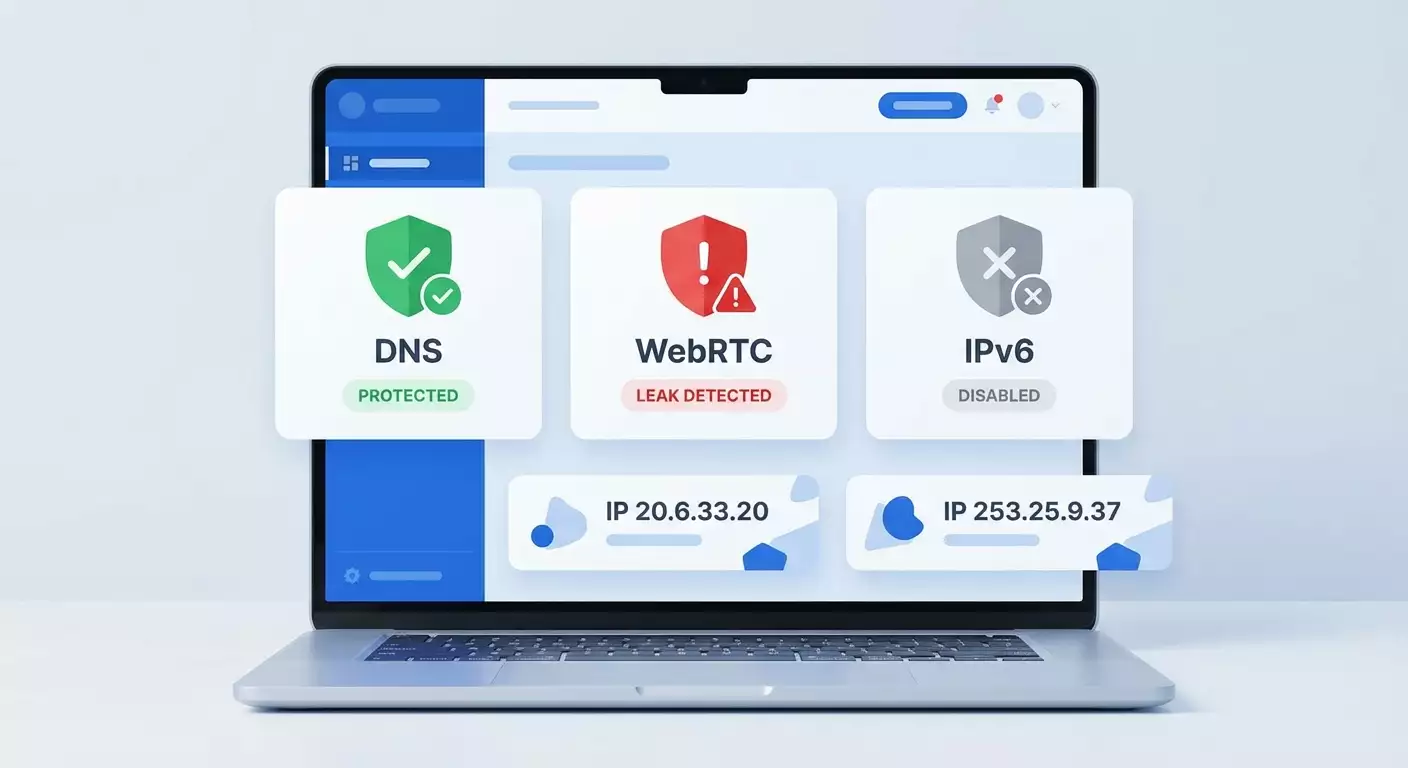
DNS Leak Test by mobileproxy.space consists of three sequential checks, each targeting a specific leak vector. The tool is designed to provide minimal noise and maximum practical information in one window. It shows actual exit points and addresses visible to the outside world and immediately marks the result with color: green “Secure,” red “Leak!,” gray “Disabled/Not Detected.”
What the Tool Checks
- DNS Leak Test: Sends 6 test DNS requests with a unique token and displays a list of DNS servers that handled the requests. Ideally, only the IP of your proxy or the resolver “tied” to the proxy should be visible. If public DNS from the provider or third parties is seen, that indicates a leak.
- WebRTC Leak Test: Calls Google STUN servers, determining local addresses (e.g., 192.168.x.x, 10.x.x.x) and public IP. Local IPs are fine. The danger occurs when a public IP different from the proxy's is detected. The service also checks if WebRTC is completely disabled—this is considered safe.
- IPv6 Leak Test: Checks if your IPv6 address is visible on the network. If IPv6 is present and does not match the proxy exit, that's a leak. If IPv6 is not detected, you are secure.
How to Interpret the Results
- Green “Secure”: No leaks found, current configuration is correct.
- Red “Leak!”: A problem has been detected. Follow the recommendations in the practical tips section to resolve the leak.
- Gray “Disabled/Not Detected”: Neutral. For instance, WebRTC is disabled or IPv6 is absent. This is usually good for anonymity.
Quick Recommendations When Detecting Leaks
- DNS: Force DNS resolutions through the proxy, use DNS over HTTPS (DoH) in your browser, disable “smart” resolvers in your system, check split-tunneling.
- WebRTC: Disable WebRTC in your browser, use extensions to block WebRTC, apply anti-detect settings that prevent exposing your public IP.
- IPv6: Disable IPv6 at the OS or router level, or use a proxy with full IPv6 support.
The simplicity of the service is its main advantage. It does not overload the interface with details but provides enough information for decision-making. For arbitrage specialists, security teams, and developers, it's a handy checklist tool for everyday use.
Scenario 1: Traffic Arbitrage and Mobile Proxy Rotation: Quick Checks Before Launching Campaigns
Who It's For: Media buyers, team leads of arbitrage teams, owners of mobile proxy networks.
Task: Before launching an ad campaign, ensure that all profiles and proxies are clean—free from DNS, WebRTC, and IPv6 leaks. Any leak increases the risk of account bans and budget losses.
Action Algorithm
- Connect the browser profile to the mobile proxy and perform IP rotation if provided.
- Open the test page: https://mobileproxy.space/dns-leak-test.html.
- Run the DNS Leak Test: check that all 6 DNS requests are visible from the proxy IP or the resolver tied to the geo proxy.
- Run the WebRTC Leak Test: check that the public IP matches the proxy IP; local addresses like 192.168.x.x or 10.x.x.x are acceptable; the status “WebRTC disabled” is also okay.
- Run the IPv6 Leak Test: ensure that IPv6 is not visible or matches the proxy exit.
- Document screenshot reports and add them to the account checklist.
Practical Example
The team launches 20 accounts in different geos. After the mobile proxy rotation, three profiles showed a red status in WebRTC: the public IP differed from the proxy IP. After disabling WebRTC in the browsers and rerunning tests, all three profiles received a green status. Result: CTR increased by 8-12 percent due to reduced risk factors and stable impressions, and the number of manual checks from moderation dropped by 15 percent according to the team's internal statistics.
Life Hacks and Best Practices
- Standardize your checklist: “connected proxy → rotation → DNS/WebRTC/IPv6 test → screenshot → campaign launch.”
- Use DoH in the browser to prevent resolving through the ISP.
- In anti-detect environments, deactivate WebRTC or enable the mDNS hashing mode for local IPs if available to avoid exposing subnet addresses.
- Disable IPv6 at the OS level if your proxy does not support it; this will reduce the likelihood of accidental leaks.
Scenario 2: Secure Remote Work and OSINT: Don’t Reveal Your Real Provider and Location
Who It's For: Security specialists, OSINT analysts, investigative journalists, support engineers working with geo-sensitive systems.
Task: Exclude the correlation of activity with the real provider and location, preventing the disclosure of the ISP through DNS and the public IP via WebRTC.
Step-by-Step Instructions
- Set up a corporate proxy or a trusted mobile proxy according to the specific geo.
- Enable DoH in your browser. Verify that the system resolver is not intercepting requests if split-tunneling is used.
- Disable WebRTC or limit it to the proxy pool. Some browsers offer privacy settings that allow you to prevent the exposure of your public IP.
- Disable IPv6 on adapters if the proxy does not support the IPv6 chain.
- Open https://mobileproxy.space/dns-leak-test.html and run all three tests.
- Document results and automate checks before OSINT sessions.
Case with Results
An analyst used a standard browser connected through a proxy and found a red status for DNS. The service indicated resolvers from a major local ISP. After enabling DoH and rerunning the test, the leak disappeared (green status). Simultaneously, WebRTC was disabled: the test showed “Disabled,” and IPv6 was not detected. As a result, the set of requests to target resources did not correlate with the provider and the analyst's geo.
Common Mistakes
- They forget that some corporate VPNs and proxies have exceptions for resolving, and DNS is not tunneled.
- Switching browsers without transferring DoH and WebRTC settings, leading to unpredictable leaks.
- Having IPv6 enabled on the laptop while the proxy does not support IPv6: some traffic bypasses.
Scenario 3: Anti-Detect Browsers and Profiles: Monitoring WebRTC and IP Consistency
Who It's For: Users of anti-detect browsers, SMM specialists, multi-account creators.
Task: Achieve consistency across all network attributes of the profile—DNS, WebRTC, and IPv6—with the chosen proxy. Any desynchronization leads to flags and additional checks.
Usage Instructions
- Create a profile in the anti-detect browser and connect a proxy.
- In the profile settings, disable WebRTC or choose a mode where the public IP is routed through the proxy, while local IPs are masked.
- Enable DoH at the profile level (if available) or in the browser itself.
- Check for an active IPv6 in the system and disable if necessary.
- Run the three tests at https://mobileproxy.space/dns-leak-test.html for each profile before logging into the account.
Example: Launching 50 Profiles
The team launches 50 profiles. Initially, 7 profiles showed the public IP of the provider instead of the proxy in WebRTC. After setting “WebRTC via proxy” and deactivating IPv6 on 3 devices, all 50 profiles began showing a green status across all three tests. After 14 days of monitoring, the CAPTCHA percentage decreased by 21 percent, and session stability improved.
Best Practices
- Incorporate DNS Leak Test checks into the template for creating every new profile.
- Automate checking every N hours in the background to catch spontaneous changes or forced WebRTC activation.
- Store screenshots of test results alongside the profile for quicker regression tracking.
Scenario 4: QA and DevOps Engineers: Monitoring Proxy Infrastructure and Regressions
Who It's For: QA, DevOps, and SRE teams whose services depend on the proper functioning of proxies and anonymous profiles (e.g., integrations with ad APIs, parsers, test environments).
Task: Turn leak checks into routine quality control. Quickly identify regressions after browser updates, proxy policies, system patches, and DNS configurations.
Step-by-Step Approach
- Form a test matrix: types of proxies (mobile/data center/residential), browsers, platforms, DNS policies.
- Move the manual check step into a separate option on the regression test checklist: running three tests at https://mobileproxy.space/dns-leak-test.html.
- Set norms: a green status across all points allows a release; gray for WebRTC is acceptable if P2P functionality is not needed; red is a blocker.
- Collect baseline screenshots and save them with the build.
- Upon discrepancies, identify the source: OS, browser, proxy, DNS policy, IPv6.
Case: Browser Update
After updating the browser in one environment, WebRTC began showing a public IP different from the proxy due to a change in the default behavior of ICE candidates. Implementing a group policy to disable WebRTC in the test environment restored the green status. The time spent diagnosing without the test would have taken hours; with the service—it took 10 minutes.
Tips
- Maintain policy templates for Windows, macOS, and Linux: disable WebRTC, prohibit IPv6, enforce DoH.
- Keep a log of “event → test result → fix” to recognize recurring patterns.
- Regularly run tests after OS and browser updates: in 2026, privacy policies change more frequently than a year ago.
Scenario 5: Geo-Unblocking, Content, and Games: Geo Compliance Without Fake Trails
Who It's For: Gamers, streamers, media service users, marketers checking geo offers.
Task: Gain access to content from a specific region and not reveal your actual location through DNS, WebRTC, or IPv6.
How to Use
- Connect to a proxy for the desired geo.
- Enable DoH and disable WebRTC if video calling is not required.
- Disable IPv6 if your proxy works only via IPv4.
- Go to https://mobileproxy.space/dns-leak-test.html and ensure there are green statuses.
- Launch services, games, or streaming platforms.
Example Result
A user from the EU connected to a US geo proxy to purchase in-game content. Without the DNS test, it resolved through their European ISP—the game offered prices in Euros and did not apply regional bonus promotions. After enabling DoH and re-testing, the service showed a green status: purchases began displaying in the correct currency with regional discounts. The savings amounted to 14 percent of the order total.
Life Hacks
- If a service is pinging STUN for connection optimization (e.g., in-game chat), disable WebRTC or limit access to STUN servers at the browser/client level.
- Keep a template configuration “geo US/UK/JP” with DoH, WebRTC, and IPv6 settings to switch quickly.
Scenario 6: Security Policies in Companies: Employee Control and Auditing
Who It's For: CISOs, SecOps, IT departments needing to ensure compliance with anonymous access policies to sensitive sources.
Task: Centrally check that employees are not bypassing traffic through DNS, WebRTC, and IPv6 channels.
Implementation Plan
- Define a norm: only green statuses are allowed for access to systems.
- Include instructions using https://mobileproxy.space/dns-leak-test.html in onboarding and quarterly auditing.
- In group policies, disable WebRTC and IPv6 where not critical.
- Enable mandatory DoH or a corporate resolver through the proxy.
- Collect screenshots of results in audit tickets and link them to accounts.
Practical Case
During an audit of 120 employees, 18 had red statuses for DNS due to home routers with “smart” resolvers. After updating router settings and enabling DoH, all 18 cases turned to green status. As a result, the risk of leaking geographical data and employee providers working with private client systems decreased.
Errors and How to Avoid Them
- Ignoring IPv6 in corporate networks where some providers have it enabled by default.
- Lack of standardized browser instructions: employees use different clients, causing settings to desynchronize.
- Infrequent checks: leaks can appear after updates, and they need to be detected immediately.
Scenario 7: Advanced Users: TOR, Proxy Chains, and Traffic Segmentation
Who It's For: Power users, researchers, pentesters who require complex traffic cascading and predictable behavior.
Task: Ensure that in multi-step configurations, DNS, WebRTC, and IPv6 do not break the anonymity model.
Instructions
- Build the chain: for example, local client → proxy → TOR → exit node.
- Force DNS tunneling: ban the system resolver, enable DoH in the client browser.
- Completely disable WebRTC in the browser used over the chain.
- Disable IPv6 if any step in the chain does not support it.
- Check https://mobileproxy.space/dns-leak-test.html. Strive for green statuses across all points; gray for WebRTC is acceptable.
Example
A researcher noticed that when using a chain with one intermediary proxy, DNS was leaking to the local provider due to configuration conflicts. After switching the browser to DoH, requests began going through the exit node: the service showed only the IP associated with the chain. Result—restored consistency and predictability in network stack behavior.
Tips
- Test each step of the chain separately and then together—this makes it easier to localize the source of the leak.
- Store profile configurations in a secrets management system to prevent manual errors.
Deeper Technical Details: How the Service Detects Leaks
DNS Leak Test in the mobileproxy.space service creates 6 unique DNS requests tied to your session (token) to exclude caching and aggregation. The service records which resolvers came for the corresponding records and displays their IP. If all requests are handled by a resolver associated with your proxy—great. If public DNS from the ISP or third-party resolvers are visible, there’s a break: requests are leaking somewhere outside the proxy.
WebRTC Leak Test initiates an ICE procedure by querying Google STUN servers. The result shows a set of candidates: local IPs (e.g., 10.x.x.x, 192.168.x.x, 172.16.x.x) and a potential public IP. Local addresses are not an issue. A public IP is dangerous if it does not match the proxy's IP.
IPv6 Leak Test attempts to determine whether the client's IPv6 address exists, comparing it to the proxy's exit IP. If IPv6 is active on the interface and not routed through the proxy, the test will detect a leak.
Why This Matters in 2026
- Browsers are updating privacy and network optimization policies: sometimes settings change the default behavior of WebRTC and DoH.
- The increasing adoption of IPv6 in provider networks raises the risk of unexpected leaks in heterogeneous configurations.
- Anti-fraud systems analyze the consistency of geo attributes: inconsistencies in DNS, WebRTC, and IPv6 raise a red flag.
Practical Recipes: How to Fix Leaks
If You Have a DNS Leak
- Enable DoH in your browser and ensure it is not overridden by system policies.
- Disable or limit system services that intercept DNS (smart resolvers in routers, VPNs with split-tunneling).
- Configure the proxy to resolve domains itself and proxy DNS requests.
- Check the results with the DNS Leak Test until achieving a green status.
If You Have a WebRTC Leak
- Disable WebRTC in the browser settings or through an extension.
- In anti-detect environments, enable the mode that transmits the public IP only through the proxy.
- Limit access to STUN servers if compatible with your tasks.
- Rerun the test and aim for either “Disabled” or a match of the public IP with the proxy's.
If You Have an IPv6 Leak
- Disable IPv6 on the network adapter or at the router level.
- Or use a proxy that supports IPv6 and routes traffic correctly.
- Recheck the IPv6 Leak Test until achieving a green status.
Comparison with Alternatives: Why Choose DNS Leak Test by mobileproxy.space
- Free and No Registration: You can check as many times as needed without limitations on quick manual audits.
- Focus on Practicality: Three tests cover key leak vectors without unnecessary analytics and complex interfaces.
- Clear Results: Color-coded statuses and clear fields help you make quick decisions.
- Compatibility: Suitable for any combination of proxies, anti-detect browsers, and operating systems.
- Applicability to Workflows: Easily integrated into checklists for arbitrage teams, SecOps, and QA.
Alternatives are often overloaded with data or require registration, which interferes with quick checks. Here, focused diagnostics of three critical leakage channels are provided with clear recommendations.
FAQ: Frequent Questions and Short Answers
Is It Necessary to Disable WebRTC Always?
If you are not using video calls and P2P in the browser, disabling WebRTC reduces risks. If WebRTC is needed, configure it so that the public IP matches the proxy's IP and does not reveal the provider.
Is a Local IP 192.168.x.x a Leak?
No. Local addresses are normal. The danger is when WebRTC shows a public IP that differs from the proxy's.
Why Are My Provider's DNS Visible if the Proxy Is Active?
The browser or system may directly resolve domains. Enable DoH, block the system resolver, or configure the proxy to proxy DNS.
My IPv6 Is Disabled, but the Test Sees It. How Is That Possible?
Check if IPv6 is active on another interface or through the router. Sometimes the system enables it after updates. Explicitly disable IPv6 on all adapters.
How Long Does the Check Take?
Generally, 10-30 seconds for each test. The entire diagnosis takes only minutes.
Do I Need to Repeat the Tests After Switching Proxies?
Yes. Any change in proxy or profile requires a retest, especially before launching campaigns or accessing important systems.
How to Store the Results?
Take screenshots before and after adjustments. Link them to the profile, ticket, or account.
Can I Use This Service in Corporate Policy?
Yes. Incorporate it into onboarding and audit checklists, setting norms of “only green status” for system access.
What to Do If Leaks Occur Periodically?
Check for browser and OS auto-updates, router DNS policies, stabilize WebRTC settings. Schedule regular checks.
Conclusion: Who Should Use the Service and How to Get Started
DNS Leak Test by mobileproxy.space is a quick and free way to ensure that your proxy configuration truly conceals your real IP and provider. The tool checks three critical leakage channels—DNS, WebRTC, IPv6—and provides a clear result. It's perfect for arbitrage specialists, security teams, QA/DevOps engineers, streamers, and anyone who values anonymity and consistency in network attributes.
How to Get Started:
- Connect to a proxy and apply basic measures: DoH, disable WebRTC, and IPv6 if necessary.
- Open the test page: https://mobileproxy.space/dns-leak-test.html.
- Run the three tests and achieve green statuses.
- Add the checking procedure to your ongoing checklist to ensure regressions are not missed.
The sooner you integrate this service into your daily routine, the lower the risks of losing accounts, budgets, and confidential data due to invisible leaks. In 2026, this is essential for network security hygiene.