Setting Up Proxy Server with Mobile Modems on Ubuntu 24
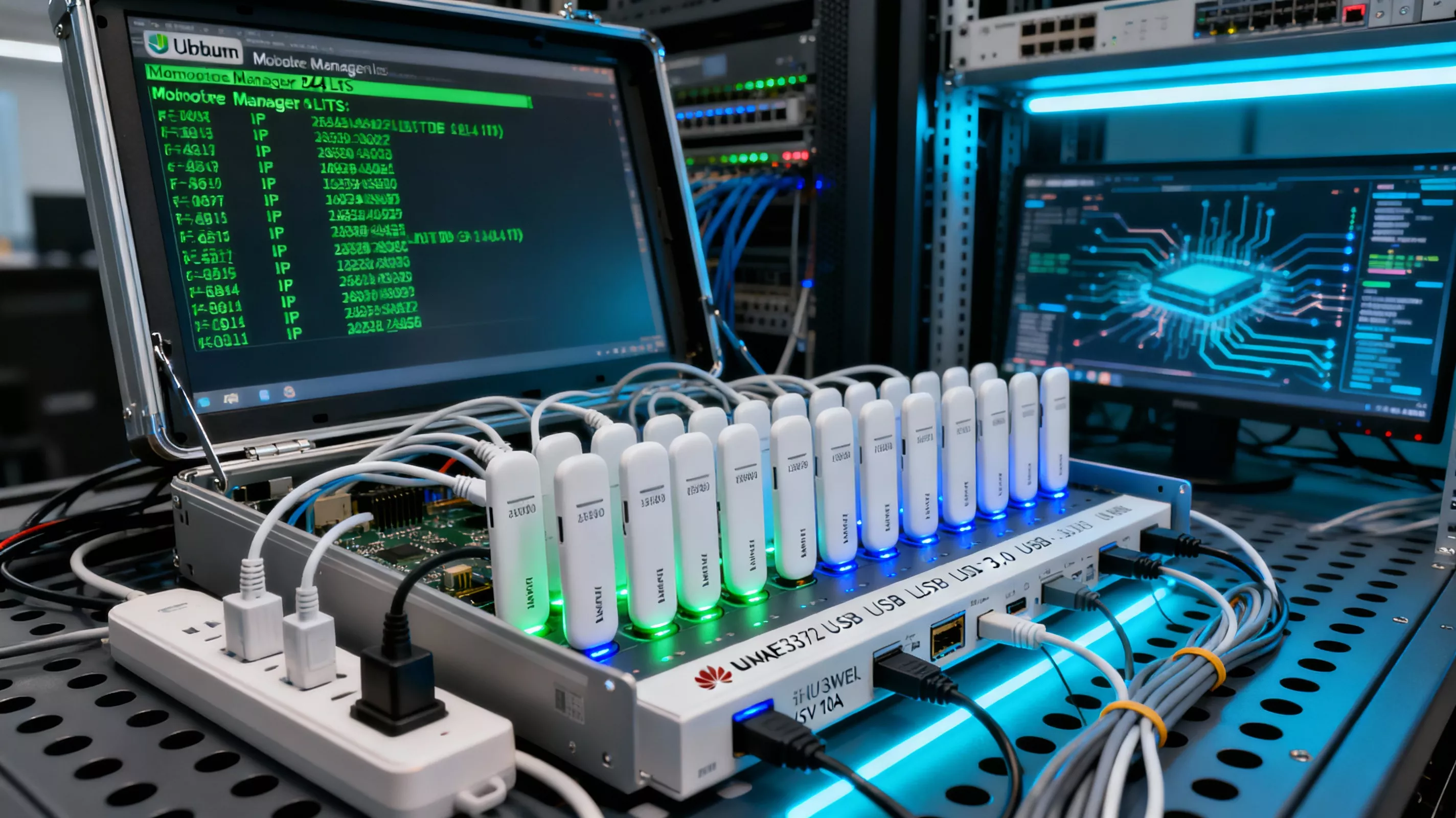
Complete guide to deploying a high-performance proxy server with support for up to 200 mobile LTE modems. The system is designed for automatic IP rotation through Huawei E3372 modems and other USB LTE devices based on Ubuntu 24.04 LTS operating system.
Server Requirements
Minimum Specifications
- Operating System: Ubuntu 24.04 LTS (required)
- Processor: 4+ cores for handling 25-40 modems
- RAM: 8+ GB RAM
- Hard Drive: 50+ GB SSD storage
- USB Ports: Powered USB 3.0 hubs with external power supply
- Access: Root privileges on the server
Supported Modems
The system has been tested and is fully compatible with the following mobile modem models:
- Huawei E3372 in HiLink mode (primary model)
- Other USB LTE modems with Ethernet mode support
Important: Modems must operate in HiLink (Ethernet) mode, not PPP mode. HiLink mode allows the modem to function as a network device without requiring additional driver installation.
Quick Installation
For automatic installation and configuration of the entire system, execute two commands sequentially. Installation requires no additional actions and takes 5 to 10 minutes depending on internet connection speed.
Step 1: Base Server Installation
The first script installs the base environment, including Node.js, 3proxy, and all necessary system components:
wget -O - https://mobileproxy.space/downloads/sp/install.sh | bash
Step 2: Modem Management Setup
The second script creates an automatic modem management system, configures routing, and creates monitoring utilities:
wget -O - https://mobileproxy.space/downloads/sp/setup-modem-management.sh | bash
Done! After installation completes, the server is fully ready for operation. The system will automatically detect connected USB modems and configure them for operation within 10-15 seconds after connection.
Base System Installation
Base Installation Components
The first script install.sh installs and configures the following components for proxy server operation:
- Node.js version 22 with automatic installation of all required npm dependencies for the management API
- 3proxy version 0.9.4 — main proxy server, compiled from source code with support for all necessary protocols
- System utilities including curl, wget, mc (file manager), htop (process monitoring), monit (service monitoring)
- Archive tools — zip, gzip, p7zip for processing updates
- Network tools — iptables-persistent for saving firewall rules, udhcpc as DHCP client for modems
Created System Users
The script creates two system users to ensure security and access rights separation:
- nodejs — user for running Node.js applications with limited privileges
- proxy3p — system user for 3proxy service operation
Automatic System Optimization
The script performs deep operating system optimization for handling a large number of simultaneous connections. The following system aspects are configured:
Network Buffers and Queues: Receive and transmit buffer sizes are increased to 128 MB, which is critical for handling high loads. Maximum connection queue length is set to 65535, allowing the server to process thousands of incoming connections simultaneously without losses.
Connection Management: The connection tracking table (conntrack) is expanded to 2 million entries, necessary for working with a large number of modems. Connection timeouts are optimized: established TCP connections live for 30 minutes, while connections in TIME_WAIT state last only 30 seconds for quick resource release.
TCP Optimizations: Socket reuse in TIME_WAIT state is activated, significantly speeding up work with frequent reconnections. FIN packet timeout is reduced to 15 seconds for quick connection closure. SYN packet queue is expanded to 8192 for processing a large number of new connections.
File Descriptors: System limits on the number of open files are increased to 1 million for both soft and hard limits. This is critical for proxy server operation, which maintains thousands of simultaneous connections.
Memory and Swap: Swap memory usage aggressiveness is configured to prevent excessive unloading of active processes. File system caching is optimized for fast access to frequently used data.
Systemd Services
Three main system services are created and configured for automatic startup on system boot:
3proxy.service — main proxy server, operating on ports 3128 (HTTP), 1080 (SOCKS5), and 80 (HTTP). The service is configured for automatic restart on failures and runs under the proxy3p user.
nodejs-server.service — management API on port 3000, providing modem control, IP address changes, and system monitoring. The service runs under the nodejs user with automatic restart on failures.
monit — monitoring system that tracks all service operability and automatically restarts them when problems are detected. Monit checks port availability and resource consumption.
All services are configured for automatic startup on system boot and automatic restart on failures, ensuring high operational reliability.
Modem Management Setup
Automatic Management System
The second script setup-modem-management.sh creates a comprehensive system for automatic work with mobile modems. The system includes several interconnected components:
Routing Tables
200 separate routing tables are created in the system in the /etc/iproute2/rt_tables file. Each table has a unique number from 100 to 300 and corresponds to a separate modem. This allows each modem to have its own routing rules independent of other devices.
Automatic Interface Configuration
When a USB modem is connected to the server, the system automatically performs the following actions:
- Detects new network device through udev rules
- Launches interface configuration script
- Obtains IP address from modem's DHCP server using fast udhcpc client
- Creates individual routing table for this modem
- Configures source-based routing rules
- Adds modem to monitoring system
The entire process takes 10 to 15 seconds, after which the modem is fully ready for operation.
Source-based Routing
The system uses advanced routing technology based on source IP address. Operating principle is as follows:
Each modem receives its own routing table with unique rules. When traffic is sent from the proxy server, the system determines which modem the packet should go through based on the source IP address. This allows precise control over which modem each connection passes through.
Rules are created for each modem that direct all outgoing traffic with the modem's IP address through that specific modem's gateway. This achieves complete isolation of traffic between different modems.
Backup Channel System
An intelligent mechanism for automatic switching between communication channels is implemented:
Primary Channel: The system automatically selects one modem as the default primary route with metric 10. All traffic not bound to a specific modem passes through this channel.
Backup Modems: All other modems receive metrics from 100 to 300. They are in standby mode and ready to accept traffic in case of primary channel failure.
Automatic Switching: When problems are detected with the primary channel (no connection, high latency), the system automatically switches traffic to the backup modem with the lowest metric. Switching occurs in 3-5 seconds without losing active connections.
Recovery: When the primary channel recovers, the system returns it to active mode with minimal delay.
Parallel Processing
The modem configuration system uses semaphores to limit the number of simultaneous operations. A maximum of 5 modems can be configured simultaneously, which prevents system overload and conflicts when accessing network resources. Each configuration is protected by lock files to prevent duplicate operations on the same interface.
APIPA Address Handling
The system automatically detects situations when a modem receives a local APIPA address (169.254.x.x) instead of a real IP from the operator. In such cases, an automatic retry to obtain an address via DHCP is performed with a 2-3 second delay. If an APIPA address is received again, the problem is logged for subsequent analysis.
Modem Management Commands
modem-manager Utility
Main console utility for managing all aspects of modem operation. All commands must be executed as root user. The utility provides a simple interface for performing complex operations with routing and monitoring.
View System Status
modem-manager status
Displays complete information about the state of all modems in the system:
- List of all detected modems with interface numbers
- IP addresses of each modem and corresponding gateways
- Network interface status (UP — working, DOWN — disabled)
- Routing table numbers and contents for each modem
- Route metrics (10 — primary, 100-300 — backup)
- Availability test results via curl requests
- Total number of active modems in the system
Configure All Modems
modem-manager setup
Performs full reconfiguration of all detected USB modems in the system. This command is useful in the following situations:
- When first connecting modems to a new server
- After server reboot to restore all routes
- When routing problems occur on multiple modems
- After changing server network configuration
The command sequentially reconfigures each modem, recreates routing tables, updates rules, and checks operability.
Quick Route Fix
modem-manager fix
Performs quick route checking and fixing without full modem reconfiguration. The command analyzes current state and fixes the following problems:
- Missing routes in modem tables
- Duplicate route entries causing conflicts
- Incorrect metrics disrupting priorities
- Default routes in wrong tables
This command works significantly faster than full reconfiguration and is suitable for quickly eliminating minor problems.
Backup Channel Testing
modem-manager test
Checks correct operation of automatic backup channel switching system. The test is performed in three stages:
- Temporarily disables primary channel with metric 10
- Checks automatic switching to backup modem
- Tests internet availability through backup channel
- Restores primary channel and checks return
Test results show switching time and backup system stability.
Proxy Server Restart
modem-manager restart-proxy
Performs safe restart of 3proxy service. Use this command after making changes to proxy server configuration files or when you need to apply new settings without rebooting the entire system.
Extended Diagnostics
modem-manager status-verbose
Displays maximum detailed information about system state for in-depth analysis:
- All routing tables with complete rule list
- Detailed routes of each modem including networks and gateways
- Conntrack statistics with number of tracked connections
- Udev event history for debugging connection problems
- DHCP client information for each interface
Monitoring and Diagnostics
Comprehensive System Diagnostics
modem-diagnostics.sh
Launches full diagnostics of all system components and generates a detailed report on hardware and software state.
Diagnostic Report Sections
USB Errors and Hardware Problems: Analyzes system logs for USB subsystem errors. Special attention is paid to protocol errors (error -71) and data transfer timeouts (error -110). For each problem, the specific USB port and error frequency are determined. Ports with more than 10 errors in the last 24 hours are considered critically problematic.
Network Interface Disconnections: Tracks Link DOWN events over the last 24 hours for each modem. Identifies modems with frequent reconnections, which may indicate problems with power, USB cables, or modem malfunction. For problematic interfaces, their IP address and physical USB port are displayed for easier location.
IP Change Errors: Analyzes Node.js service logs for timeouts when executing IP change commands. Identifies modems that respond slowly to API requests or cannot perform reboot. Modem identifier (EID) and error count over the last 24 hours are displayed.
System Load and Resources: Shows current load average value, list of most resource-intensive processes by CPU and memory usage. Special attention is paid to the Node.js process — if it uses more than 80% of memory, a critical warning about the need for restart is displayed.
Overall Modem Status: Displays number of active modems out of total connected, curl test results for internet availability through each modem.
Problem Resolution Recommendations: Based on analysis of all data, the system generates a list of specific actions to solve detected problems. If no critical problems are detected, normal system operation is confirmed.
Saving Report
To save diagnostic results to a file, use output redirection:
modem-diagnostics.sh | tee /root/diagnostics-$(date +%Y%m%d).txt
This will create a file with the current date containing the complete report for subsequent analysis or sending to support.
Working with System Logs
Modem Configuration Logs: The /var/log/modem-setup.log file contains records of all interface configuration operations. Here you can track the process of obtaining IP addresses, creating routing tables, and errors that occur.
Route Check Logs: The /var/log/modem-routes.log file keeps track of all route checking and fixing operations, including detected problems and fixes performed.
Node.js Application Logs: To view management API operation, use the journalctl -u nodejs-server -f command, which shows logs in real-time.
3proxy Logs: The proxy server maintains detailed logs of all connections in the /home/3p/logs/ directory. The current active log is in the 3proxy.log file.
System Event Analysis
USB Events: To view recent USB subsystem events, use the dmesg | grep -i usb | tail -30 command. This helps diagnose modem detection problems.
Network Events: The journalctl -k | grep -i network | tail -30 command will show recent events related to network interfaces.
Troubleshooting
Modem Not Detected by System
Problem: After connecting USB modem, it doesn't appear in the network interface list and the system doesn't see it.
Possible Causes:
- Modem didn't switch to HiLink mode (remained in data storage mode)
- Insufficient USB port power
- USB cable or hub malfunction
- Modem driver not loaded in kernel
Step-by-step Solution:
- Check that modem is detected at USB level:
lsusb | grep Huawei. If modem is not displayed, the problem is hardware. - Check network interface list:
ip link show. Look for ethX type interfaces. - Try manually configuring detected interface:
modem-interface-setup.sh eth12(replace eth12 with your interface). - Reload udev rules:
udevadm control --reload-rules && udevadm trigger. - If nothing helps, try connecting modem to another USB port or check USB hub power.
Modem Gets Local APIPA Address
Problem: Modem network interface receives address like 169.254.x.x instead of real IP from operator.
Causes:
- DHCP server of modem's built-in router didn't start
- Modem didn't complete operator network initialization
- SIM card problems or lack of network registration
- Insufficient power leads to modem operation failures
Solution Methods:
- Stop DHCP client for this interface:
pkill -f "udhcpc.*eth12" - Wait 2-3 seconds for process to complete
- Start DHCP client again:
udhcpc -i eth12 -q -n - If problem persists, physically disconnect modem from USB for 10 seconds and reconnect
- Check modem web interface at http://192.168.8.1 for state diagnostics
Important: APIPA addresses 169.254.x.x are local and don't allow internet access. A modem with such address is non-functional for proxy work.
High CPU Load
Problem: Load average value exceeds 10, server works slowly.
Cause Diagnostics:
- Launch process monitoring utility:
toporhtop - Identify processes with highest CPU consumption
- Check Node.js logs for cyclical errors:
journalctl -u nodejs-server | tail -100 - Check number of active connections in 3proxy
Problem Solution:
- If problem is in Node.js process, restart service:
systemctl restart nodejs-server - When conntrack table is full, clear old connections:
conntrack -F - Check for DDoS attack or abnormally large number of requests
- Consider system scaling or reducing number of modems on one server
Frequent Modem IP Change Errors
Problem: API requests for modem IP address changes often end in timeouts.
Possible Causes:
- Modem takes too long to process reboot command (more than 30 seconds)
- Unstable USB connection leads to command loss
- Power problems cause failures during modem reboot
- Specific modem model has slow built-in processor
Step-by-step Solution:
- Run diagnostics to identify problematic modems:
modem-diagnostics.sh - In report, find "IP CHANGE TIMEOUTS AND ERRORS" section and identify EID of problematic modems
- Check specific modem operability through its web interface:
curl http://192.168.8.1/api/device/information - If modem responds slowly or doesn't respond at all, reconnect it to another USB port with better power
- If problem persists, consider replacing specific modem with new one
Tip: Modems with more than 20 errors in 24 hours should be considered critically problematic and replaced first.
Proxy Server Won't Start
Problem: 3proxy service cannot start, systemd service startup error.
Diagnostics:
- Check configuration file syntax:
3proxy -t /home/3p/cfg/3proxy.cfg - View service logs:
journalctl -u 3proxy -n 50 - Check file access rights:
ls -la /home/3p/cfg/
Fix:
- If problem is in access rights, fix owner:
chown -R proxy3p:proxy3p /home/3p/ - For configuration errors, run installation script again to recreate correct configuration
- Make sure ports 3128, 1080, 80 are not occupied by other processes:
ss -tulpn | grep -E ':(3128|1080|80)'
System Performance
Optimal Configuration
Based on experience operating thousands of servers, optimal parameters for stable operation have been determined:
| Parameter | Recommended Value | Description |
|---|---|---|
| Modems per Server | 25-40 units | Optimal load and stability balance |
| CPU Cores | 4-8 cores | For parallel connection processing |
| RAM | 8-16 GB | For caching and connection processing |
| USB Hubs | Powered USB 3.0 | With external power supply 5V 10A+ |
Throughput
Real performance indicators in production environment:
- Speed per Modem: 10-20 Mbps depending on operator and signal quality
- Requests per Second: 500-1000 requests on one server with 30-40 modems
- Latency: 50-300 milliseconds depending on operator and distance to base station
- IP Change Time: 15-30 seconds for full modem reboot and obtaining new address
System Limitations
Factors affecting maximum performance:
- USB Bandwidth: USB 3.0 bus allows connecting up to 40-50 modems on one hub when using quality cables
- Conntrack Table: Configured for 2 million simultaneous connections, sufficient for working with 40 modems under high load
- File Descriptors: 1 million limit allows keeping hundreds of thousands of open connections without problems
- USB Power: Critical factor — each modem consumes 0.5-1A, must use hubs with powerful power supplies
System Scaling
Increasing Modem Count
For working with more than 40 modems on one server, it's recommended to:
- Increase RAM volume to 16 GB or more
- Use processors with 8 or more cores
- Install additional USB controllers to distribute bus load
- Use separate power supplies for each group of 10-15 modems
Distributed Architecture
When needing to work with hundreds of modems, distribution across multiple servers is recommended:
- Each server handles 25-40 modems for optimal stability
- Use load balancer for request distribution between servers
- Centralized monitoring system for controlling all servers
- Backup servers for ensuring fault tolerance
Additional Information
System Updates
To update system components to latest versions, run installation scripts again:
# Update base system and Node.js application
wget -O - https://mobileproxy.space/downloads/sp/install.sh | bash
# Update modem management system
wget -O - https://mobileproxy.space/downloads/sp/setup-modem-management.sh | bash
Safe for Production: Scripts are designed for safe re-execution. They don't delete existing data, configurations, and don't interrupt active connections.
Support
For help, bug reports, and system improvement suggestions:
- Official Website: https://mobileproxy.space
- Documentation: Regularly updated based on user experience
- Diagnostics: Use
modem-diagnostics.shto collect information before contacting
Conclusion
The presented mobile proxy management system provides a complete automation cycle for working with USB modems. Key advantages of the solution:
- ✅ Full Automation: Modems configure automatically when connected in 10-15 seconds without manual intervention
- ✅ High Scalability: Support for up to 200 modems on one server with horizontal scaling capability
- ✅ Fault Tolerance: Automatic switching to backup channels when primary connection fails
- ✅ Simple Management: Intuitive CLI utility modem-manager for all operations
- ✅ Comprehensive Diagnostics: Automatic monitoring and detailed system state reports
- ✅ Production-ready: Tested on ~1000 servers under real load
Operation Recommendation: Regularly run the modem-diagnostics.sh command to monitor system state. This will help identify problems at an early stage and prevent serious operational failures.
The system is developed considering best practices of proxy server operation and includes all necessary tools for stable work in production environment. Proper equipment configuration (quality USB hubs with sufficient power) combined with automation ensures reliable IP rotation service operation.