How to Use a Proxy on Your Computer: A Step-by-Step Guide for Beginners and Advanced Users
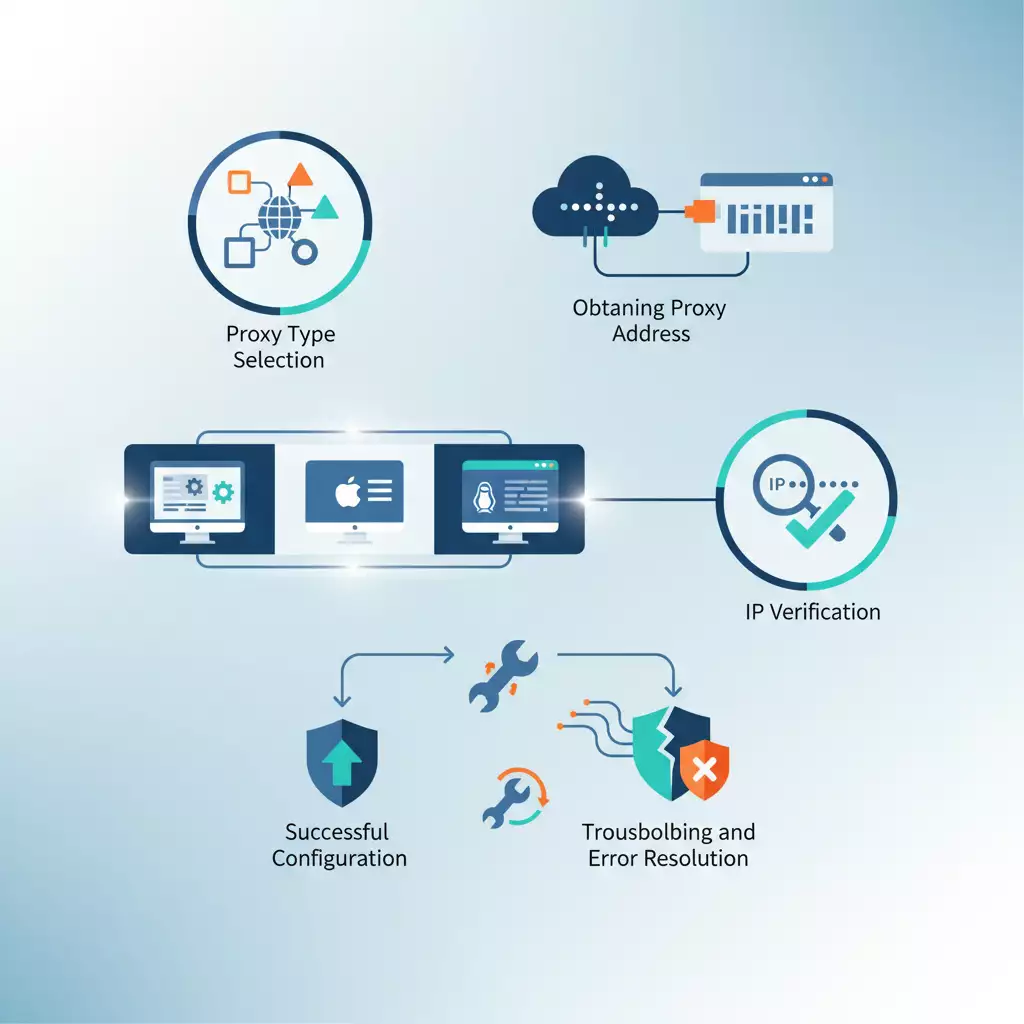
Table of contents
- Introduction
- Preparation
- Basic concepts
- Step 1: define your objective and choose the type of proxy
- Step 2: obtain proxy address and check access
- Step 3: configuring system proxy in windows 10/11
- Step 4: configuring system proxy in macos
- Step 5: configuring proxy in linux (gnome/kde and via variables)
- Step 6: configuring proxy in browsers and applications
- Verification of results
- Common mistakes and solutions
- Advanced features
- Faq
- Conclusion
Introduction
In this practical guide, you'll receive a complete step-by-step roadmap on how to use a proxy on your computer. We'll start with simple definitions and end with a confident working configuration on Windows, macOS, and Linux, along with popular browsers and applications. Each action is described in detail: where to click, what to enter, and how to check if everything works.
What you’ll achieve: you'll have one or more correctly configured proxies, a system or point configuration for various applications, an understanding of how to quickly enable and disable proxies, how to resolve common access, authentication, and DNS issues, and how to optimize performance and security.
Who is this guide for? It’s designed for beginners encountering proxies for the first time and worried about making mistakes, as well as advanced users needing clear instructions, advanced settings, and optimization tips. We will avoid jargon, or explain it as necessary. Each step can be repeated and reproduced from scratch.
What you need to know beforehand: basic computer skills, the ability to open system and browser settings, and copy and paste text. Experience with the command line will be useful on Linux and for advanced setups, but we’ll provide graphical interface alternatives.
How much time you'll need: basic system proxy setup will take 10–20 minutes. Configuring browsers and a couple of applications will add 10–30 minutes. Advanced options (PAC, automation, dedicated server) may take 30–90 minutes, depending on your pace.
Preparation
Before you start, make sure you have everything you need and prepare your system to minimize errors.
Required Tools, Programs, and Access
- Access to your operating system’s settings panel (Windows, macOS, Linux).
- Proxy data: host address (or IP), port, type (HTTP, HTTPS, SOCKS5), authentication method (username and password or IP binding).
- Access to your proxy provider’s account (if using a paid service), to quickly update the username, password, or allowed IP list when necessary.
- A browser for verifying the results. Any will do: Chrome, Edge, Firefox, Opera, Safari.
- Optional: a text editor for PAC files or configuration (like Notepad on Windows or TextEdit on macOS).
System Requirements
- Supported OS version: Windows 10/11, macOS 12+ (or the current one you have), Linux with GNOME or KDE environment.
- A stable internet connection without a proxy, to download required components and test switching.
- Administrator rights on the computer if you are setting up a system proxy or changing settings for all users.
What to Download, Install, and Configure in Advance
- Update your browser to the latest version to avoid incompatibilities.
- If you plan to fine-tune the proxy in browsers, install an extension for managing proxy profiles (like a profile switcher). We'll show you how to do it without extensions, but they are convenient for advanced scenarios.
- If you need your own proxy server on a VPS, prepare access to any Linux server (Ubuntu/Debian) and an SSH client. This is optional.
Creating Backups
Changes to the proxy settings are reversible, but it’s good practice to save the current values.
- Windows: take screenshots of the "Proxy Settings" screen so you can quickly return to the original configuration later.
- macOS: on the proxy tab in network settings, note what was originally checked.
- Linux: if you'll be changing environment variables or system configs, keep a backup of the files by adding the suffix .bak.
Tip: Store all proxy data (host, port, username, password, type) in one text file. This will speed up entry and reduce the risk of typos.
Basic Concepts
To make the instructions meaningful, let's briefly go over key terms and principles.
Key Terms
- Proxy Server — an intermediary server that redirects your traffic to the target website or service. The website sees the proxy's IP instead of yours.
- HTTP/HTTPS Proxy — proxy used for web traffic. HTTPS supports encryption between you and the proxy.
- SOCKS5 — a versatile proxy type, suitable for not only web pages but also other protocols, often preferred for applications and P2P.
- Authentication — method of accessing the proxy: via username/password or IP whitelisting.
- PAC File — proxy auto-configuration script that determines whether to send requests directly or through the proxy.
- Proxy Rotation — changing your IP over time or on-demand, handy for tasks requiring different exit addresses.
Operational Principles
When you configure a proxy in the system or application, all requests (or only part of them, depending on the rules) first go to the proxy. The proxy delivers them to the target resource and returns the response. Advantages include changing geolocation, dissociating your real IP from online activity, and in some cases—caching and speeding up access. It's essential to understand that not all types of traffic are the same: regular HTTP requests differ significantly from streaming or gaming protocols, so different types of proxies are chosen for various tasks.
What’s Important to Understand Before Starting
- Not all applications read system proxy settings. Sometimes, manual configuration is required within the application itself.
- Username/password authentication is often requested automatically, but sometimes it must be stated directly in a URL format: protocol://user:pass@host:port.
- Some websites and services actively filter suspicious proxies. This is standard practice. Solutions: a quality provider, the correct type of proxy, proper headers, and if needed, IP rotation.
⚠️ Attention: Use proxies legally and ethically. Do not violate the rules of websites or the laws of your country. Refrain from actions that could harm third parties or compromise security.
Step 1: Define Your Objective and Choose the Type of Proxy
Objective of this step: understand which type of proxy and configuration you need to avoid wasting time on unnecessary settings.
What You'll Achieve After This Step
A clear decision: HTTP/HTTPS or SOCKS5, static or rotating, datacenter or residential, as well as which authentication method to use.
Step-by-Step Instructions
- Define your task. For example: simple access to websites, browser work, using a Telegram client, scraping, multi-accounting, testing geo-versions of sites.
- Choose your proxy type: HTTP/HTTPS — for browsers and most web-related tasks. SOCKS5 — for a wide range of applications when a universal channel is needed.
- Resolve your IP issue: Static — one IP for an extended period, stable and predictable. Rotating — frequently changing IP for distributing requests.
- Choose the origin of your IP: Datacenter — cheaper, faster, but often detected by websites. Residential — more expensive, closer to "ordinary users," better at passing filters.
- Determine authorization: Username/Password — universal, changes quickly. By IP — convenient on servers and where you want to exclude password entry.
- Create a needs table: for each application/website, specify the type of proxy, required geolocation, authentication mode, and additional parameters (like bypassing local addresses).
Tip: If in doubt, start with HTTP/HTTPS for browsers and SOCKS5 for applications. This is a safe and straightforward basic option.
✅ Check: You have a document or note with your selected proxy types and parameters for your tasks. If yes, proceed to the next step.
Possible Problems and Solutions
- Problem: Unclear which type of traffic the application uses. Reason: The application hides protocols. Solution: Look for "Network/Connection/Proxy" in settings, try SOCKS5 first.
- Problem: Uncertain about needed IP region. Reason: Service requirements are unclear. Solution: Start with a neutral geolocation, check access, and change regions if necessary.
Step 2: Obtain Proxy Address and Check Access
Objective of this step: get valid proxy data and ensure it's correct before beginning system settings.
What You'll Achieve After This Step
Ready parameters for connection: host, port, type, authentication method, and verification that username/password or IP binding works.
Step-by-Step Instructions
- Prepare a list of proxies. This can be a paid provider, a corporate server, or your own.
- Gather precise data: type (HTTP, HTTPS, or SOCKS5), host (domain or IP), port (e.g., 8080 or 1080), and username and password if necessary.
- If using IP authorization, ensure your current external IP is whitelisted by the provider. Check that updates apply quickly.
- Check the host's availability. You can perform a connection check command (like ping to the proxy's domain, if permitted, or a TCP connection attempt using OS tools).
- Verify the port. If there’s a utility for checking TCP ports, ensure the port on the host is open. If not, move on to the next tasks — we will check this in real settings anyway.
- Compile all parameters into a single string for convenience. Example: for HTTP proxy with a password — http://user:pass@192.0.2.10:8080. For SOCKS5 — socks5://user:pass@198.51.100.20:1080.
⚠️ Warning: Avoid lists of "free" proxies from unverified sources. They are often unstable, compromised, or log traffic. This poses a security and privacy risk.
Tip: If there’s an option, choose proxies with a control panel where you can quickly change the password, IP whitelists, and geolocation. This saves time during debugging.
✅ Check: You have at least one fully detailed proxy address, you are confident in the authentication method, and the connection is ready. Save this data.
Possible Problems and Solutions
- Problem: It seems the port is closed. Reason: Firewall restrictions from the provider or local antivirus. Solution: Temporarily disable filtering for testing or add an exception for that specific port.
- Problem: Uncertain if username/password are correct. Reason: Typo or incorrect layout. Solution: Copy data from the provider's panel and check for extra spaces.
Step 3: Configuring System Proxy in Windows 10/11
Objective of this step: globally enable the proxy for applications that use Windows' system settings.
What You'll Achieve After This Step
The system proxy is enabled for WinINet applications (for example, most Chromium-based browsers pick it up through system settings), and you have a quick way to turn the proxy on and off.
Step-by-Step Instructions
- Open Windows "Settings." Click Start, type "Settings," and open the application.
- Go to "Network and Internet" then "Proxy."
- Disable "Automatically detect settings" if it interferes with manual configuration. You can turn on PAC auto-configuration later if needed.
- Turn on "Use a proxy server." Address and Port fields will appear.
- In the "Address" field, enter the proxy host, for example, 192.0.2.10. In the "Port" field — the corresponding port, for example, 8080.
- If your proxy requires a username/password, open any browser and go to any website. A system credentials request window will appear. Enter the proxy username and password and check "Remember" if you want it stored.
- If your authentication is by IP, ensure your IP is on the provider’s side. No additional input is needed in Windows' system fields.
- To set exceptions (local addresses without proxy), find the field "Don't use a proxy server for addresses starting with these entries," and add, for example: localhost;127.0.0.1;10.*;192.168.*;*.local
- Click "Save." Close the settings window.
- Check your connection. Open a browser, search for "my IP." Compare the displayed IP with your proxy IP.
- For advanced users: configure WinHTTP for system services. Open the Command Prompt as an administrator and execute: netsh winhttp set proxy 192.0.2.10:8080. To clear: netsh winhttp reset proxy.
Tip: Create two shortcuts: "Enable Proxy" and "Disable Proxy." This can be done through PowerShell scripts or reg files that toggle necessary keys. It's handy for a quick toggle.
✅ Check: In the browser, your IP has changed to the proxy address. Applications reading the system proxy can access the internet. If prompted for username/password and accepted, everything is working correctly.
Possible Problems and Solutions
- Problem: Browser doesn’t change IP. Reason: It uses its own settings or cache fallback. Solution: Check the browser’s own settings, restart it.
- Problem: Application ignores system proxy. Reason: It uses direct sockets or its own networking stack. Solution: Configure the proxy within the application or use SOCKS5 at the application level.
- Problem: The login window doesn’t appear. Reason: The provider expects IP whitelisting, not a password. Solution: Check the authorization method in the dashboard.
Step 4: Configuring System Proxy in macOS
Objective of this step: enable the proxy in the profile of the current macOS network interface and set the correct exceptions.
What You'll Achieve After This Step
A working system proxy for browsers and applications that respect the macOS network stack. An understanding of how to enable and disable the proxy with one toggle.
Step-by-Step Instructions
- Open macOS "System Preferences." Select "Network."
- On the left, select the active interface (like Wi-Fi or Ethernet).
- Click "Advanced" or "Details" (depending on the version), then go to the "Proxy" tab.
- Check the types of proxies you want to use. For web traffic: "HTTP Proxy" and if needed, "HTTPS Proxy." For universal tasks: "SOCKS proxy."
- In the "Server" field, specify the host (like 198.51.100.20). In the "Port" field — the port number (like 1080 for SOCKS5 or 8080 for HTTP).
- If authentication is required, check "Account and Password," enter the username and password. Save changes.
- Add "Bypass proxy for these hosts and domains": localhost, 127.0.0.1, *.local, 10.0.0.0/8, 192.168.0.0/16, and optionally your corporate network domains.
- Click "OK" and "Apply."
- Open your browser and check your IP by searching for "my IP." The IP should match the proxy.
- If needed, enable auto-configuration via PAC: check "Automatic Proxy Configuration," provide PAC file URL, or select it locally. This is for advanced scenarios.
Tip: On macOS, it’s handy to have two "Network Locations": "Normal" and "Through Proxy." Create a new location with proxy settings and toggle it from the menu bar. This saves time.
✅ Check: IP change in the browser is confirmed. Applications respecting macOS settings work through the proxy. Unticking options in "Proxy" instantly returns direct connection.
Possible Problems and Solutions
- Problem: Some applications don’t switch. Reason: They don't use the system stack. Solution: Look for proxy settings inside the application or use extensions/local proxy clients.
- Problem: Password request repeats. Reason: Incorrect username/password or proxy doesn’t support your type. Solution: Verify login details, try a different type (like SOCKS5), check with provider’s data.
Step 5: Configuring Proxy in Linux (GNOME/KDE and via Variables)
Objective of this step: enable the proxy in the graphical environment and/or through environment variables for console and system tools.
What You'll Achieve After This Step
A working system proxy for environment applications and correctly configured variables for console utilities and package managers.
Step-by-Step Instructions (GNOME)
- Open "Settings" → "Network" → "Proxy."
- Select "Manual" or "Automatic" (for PAC). For "Manual" fill in HTTP Proxy, HTTPS Proxy, and/or SOCKS Host with ports.
- Add exceptions in the "Ignore Hosts" field, like: localhost, 127.0.0.1, 10.0.0.0/8, 192.168.0.0/16, *.local.
- Save changes. GNOME applications will begin to use the proxy.
Step-by-Step Instructions (KDE Plasma)
- Open "System Settings" → "Network" → "Proxy Settings."
- Select "Manual," enter HTTP/HTTPS or SOCKS parameters.
- Specify exceptions and apply changes.
Environment Variables for Console
- Open your shell profile: ~/.bashrc, ~/.zshrc, or ~/.profile.
- Add lines for HTTP/HTTPS: export HTTP_PROXY=http://user:pass@192.0.2.10:8080 and export HTTPS_PROXY=http://user:pass@192.0.2.10:8080. For SOCKS5: export ALL_PROXY=socks5://user:pass@198.51.100.20:1080.
- For a non-auth version, remove user:pass@ from the URL. If IP authentication, just specify host:port.
- Add exceptions: export NO_PROXY=localhost,127.0.0.1,10.0.0.0/8,192.168.0.0/16,.local
- Save the file and reload the shell with the command source ~/.bashrc (or restart the terminal).
- Check: run a network command that takes the proxy into account, and ensure requests go through the proxy. To verify, you can request any page and see the connection uses the specified address.
Package Managers and Tools
- APT: create or edit /etc/apt/apt.conf.d/01proxy with the content Acquire::http::Proxy "http://user:pass@192.0.2.10:8080/" and similarly for https.
- YUM/DNF: add proxy=http://user:pass@192.0.2.10:8080 in /etc/dnf/dnf.conf.
- Wget: in ~/.wgetrc specify use_proxy=on and proxy lines http_proxy= and https_proxy=.
- Curl: use environment variables HTTP_PROXY/HTTPS_PROXY or create ~/.curlrc with proxy = "http://user:pass@...".
Tip: If you frequently switch proxies, create two environment files: proxy_on and proxy_off. Connect them with the command source proxy_on or source proxy_off. This is faster and reduces errors.
✅ Check: Graphical applications consider the proxy, while console utilities use environment variables. You see the IP change for requests, and local addresses bypass the proxy as per the NO_PROXY list.
Possible Problems and Solutions
- Problem: Console ignores variables. Reason: Changes in one profile, while you're using another shell. Solution: Specify which file your shell reads, add variables there.
- Problem: APT does not pull packages. Reason: Error in the apt.conf.d configuration. Solution: Check syntax, quotes, and the presence of a terminating slash.
Step 6: Configuring Proxy in Browsers and Applications
Objective of this step: enable proxies where applications do not read system parameters or require fine routing through websites.
Browsers
Google Chrome and Microsoft Edge
- By default, they use Windows/macOS system settings. If you have already enabled the proxy at the system level, the IP will change automatically.
- For separate profiles, install a proxy profile management extension. Create a "Proxy" profile and a "No Proxy" profile, configure HTTP/HTTPS or SOCKS5 for required domains.
- Add bypass rules for local domains and internal services to avoid routing them through the proxy.
Mozilla Firefox
- Open "Settings" → "General" → "Network" → "Settings…".
- Select "Manual proxy configuration." Enter the HTTP proxy and port, and if needed, check "Use this proxy server for all protocols" or specify SOCKS Host and port.
- If authentication is needed, Firefox will prompt for username/password when you open a site. You can save them in the manager.
- Add "No proxy for" and list local addresses and domains.
Opera
- Opera reads the system settings. For manual configuration, open "Settings" → "Advanced" → "System" → "Open your computer's proxy settings" and set it there.
Applications
- Telegram Desktop: Open "Settings" → "Advanced" → "Connection type" → "Use Custom Proxy." Select SOCKS5, enter host, port, username/password if necessary. Save.
- Steam: Launches without explicit proxy settings for the client. For the web part, you can use the system proxy. For downloads via proxy, system-level proxy or proxy tunneling will be needed.
- Discord/Slack: Usually read system settings. In case of issues, check corporate policies or use a network traffic interceptor at the system level.
- Git: Configure the proxy globally: git config --global http.proxy http://user:pass@192.0.2.10:8080 and git config --global https.proxy http://user:pass@192.0.2.10:8080. For SOCKS5 use socks5://. To clear: git config --global --unset http.proxy.
- npm: npm config set proxy http://user:pass@192.0.2.10:8080 and npm config set https-proxy http://user:pass@192.0.2.10:8080. Checking: npm config get proxy.
- pip: Specify environment variables or use the --proxy option. Example: pip install package --proxy http://user:pass@192.0.2.10:8080.
- Docker: For docker build, add the proxy in /etc/systemd/system/docker.service.d/http-proxy.conf and https-proxy.conf or use --build-arg http_proxy=..., then systemctl daemon-reload and restart docker.
- curl/wget: Use environment variables HTTP_PROXY/HTTPS_PROXY/ALL_PROXY or the command line option --proxy.
Tip: For flexible rules in browsers, use profiles and domain lists. For example: social networks and streaming services — no proxy, work tools — through regional-specific proxy.
✅ Check: In the browser, the proxy IP is visible. In the applications where you’ve set up the proxy manually, the connection is successfully established, and the authentication is accepted.
Possible Problems and Solutions
- Problem: The application still asks for a password. Reason: Incorrectly saved credentials or incorrect URL format. Solution: Double-check the format protocol://user:pass@host:port.
- Problem: Browser works, application does not. Reason: The application requires SOCKS5. Solution: Enable SOCKS5 or configure the application for SOCKS5 directly.
Verification of Results
The purpose of this section is to objectively confirm that your traffic is going through the proxy and that you can predictably switch modes.
Checklist: What Should Work
- The search query "my IP" shows the proxy address when the proxy is enabled.
- When the proxy is disabled, the IP returns to your internet provider.
- Websites and applications load quickly, without long delays and repeated password requests.
- Local addresses and internal domains bypass the proxy according to the exclusion list.
- If necessary, access to private resources through the proxy is established and stable.
How to Test Correctly
- Open a browser with the proxy enabled. Check the IP and geolocation.
- Open multiple sites from different regions. Watch for captchas and blocks. If there are any, try a different IP or proxy type.
- Disable the proxy and recheck the IP. It should revert to the original.
- Check one application that you set up separately. Ensure it connects successfully and does not ignore the proxy.
- Check bypassing local addresses: open a page on localhost or within the internal network. It should work directly, quickly, and without an attempt to go through the proxy.
Success Metrics
- IP changes predictably when enabling/disabling settings.
- No unexpected password requests at every step.
- Connection delays do not exceed usual values for your region and proxy type.
Tip: Create a short reminder: where to turn the proxy on and off, how to check the IP and what to do if a site doesn't open. Having everything at hand saves minutes every day.
Common Mistakes and Solutions
- Problem: Browser does not change IP. Reason: Proxy is set up in the system, but the browser uses its own parameters. Solution: Turn on the proxy within the browser, restart the browser, or remove any extension that overrides settings.
- Problem: Constant requests for login/password. Reason: Incorrect password or proxy does not support the selected type. Solution: Reset saved credentials, verify type (HTTP/HTTPS vs SOCKS5), specify user:pass in the URL.
- Problem: The application ignores the system proxy. Reason: Direct socket creation is being used. Solution: Look for settings inside the application or specify environment variables/startup parameters.
- Problem: Slow page loading. Reason: Distant georegion or overloaded proxy. Solution: Choose a closer region, use residential IPs where needed, try a different port or another node from the provider.
- Problem: The website shows a captcha or blocks access. Reason: Known datacenter IP. Solution: Switch to residential or mobile proxy, enable rotation, use correct headers and request pauses.
- Problem: Unable to connect to the proxy. Reason: Incorrect port or host, blocked by firewall. Solution: Check the port with the provider, add exceptions in antivirus and firewall.
- Problem: Local resources became unavailable. Reason: NO_PROXY/Bypass exceptions are missing. Solution: Add localhost, 127.0.0.1, internal subnets, and domains to the bypass list.
Advanced Features
PAC File for Smart Routing
The PAC file allows you to describe rules for when traffic should go through the proxy and when it should go directly. An example of a basic PAC: function FindProxyForURL(url, host) { if (dnsDomainIs(host, ".local") || isInNet(host, "10.0.0.0", "255.0.0.0") || isInNet(host, "192.168.0.0", "255.255.0.0")) return "DIRECT"; return "PROXY 192.0.2.10:8080"; }. Save the file as proxy.pac, specify it in your OS or browser's PAC settings. Expand rules as needed.
Chaining and Fallback
- If the application supports it, you can specify a primary and a backup proxy. If the first fails, connection will go through the second one.
- Use different regions for different tasks: work platforms — closer region, testing — target country.
Your Own Proxy on a Server
- Rent a VPS with a public IP.
- Install a minimal proxy server that supports the desired type and set a strong password.
- Restrict access by IP or use username/password. Open only the required port in the firewall.
- Test the connection from your PC and add exceptions for local networks.
⚠️ Warning: Never leave open proxies without authentication. This is a direct path to abuse of your server and IP blocks.
Tip: If you need stability, maintain two sources of proxy: primary and backup. Keep their settings handy and regularly check accessibility.
Performance Optimization
- Choose geographically closer nodes to reduce latency.
- For sensitive tasks, use static IP addresses. For bulk tasks — rotation.
- Monitor response time. If RTT increases, switch to another node.
Security and Privacy
- Store proxy passwords in a password manager.
- Use HTTPS websites over proxies. This will provide end-to-end encryption to the site.
- Check the logging policy with the provider, and choose suppliers with minimal log retention.
Tip: For applications where data integrity is critical, use SOCKS5 and encrypted protocols over it. This reduces interception risks.
FAQ
- How do I know if the proxy is really working? Check the IP in your browser before and after enabling the proxy, and test one application. If the IP changes and the connection is stable, the proxy is working.
- What’s better: HTTP/HTTPS or SOCKS5? For web tasks — HTTP/HTTPS, for versatility — SOCKS5. If in doubt, take SOCKS5 for applications and HTTP/HTTPS for browsers.
- Is a PAC file necessary? No, if there is a single access point and a simple scheme. Yes, if smart domain routing and local address bypassing are needed.
- Why does a site show a captcha? The IP is known to be datacenter or suspicious. Try a residential IP, rotation, or a different region.
- Can system proxy and different application settings be combined? Yes. System proxy is the default, while in critical applications, set custom parameters.
- How to quickly turn the proxy on and off? On Windows — the toggle in "Settings → Network and Internet → Proxy." On macOS — the Proxy tab in the active interface. On Linux — environment profile or toggle in network settings.
- What if I forgot the proxy password? Reset it in the provider’s panel. Update saved data in your browser and applications.
- Why doesn’t the application prompt for a password? Authorization may be tied to the IP. Or the application doesn't support input dialogs. Specify user:pass in the proxy URL.
- Can different proxies be used for different sites? Yes, via PAC files or browser profile extensions. In applications, use routing rules if supported.
- Is it dangerous to use "free" proxies? Yes, often they are not safe. It’s better to use trusted providers or your own proxy.
Conclusion
You’ve traveled the full path from selecting and obtaining proxy parameters to step-by-step configuration on Windows, macOS, and Linux, as well as in browsers and key applications. You've learned how to verify results, find and fix common errors, bypass local addresses, and use advanced tools like PAC files and environment variables. Now you can confidently enable and disable proxies, select type for different tasks, and maintain a stable and secure connection.
What to do next: solidify the basic scheme, add a backup proxy for failures, and configure profiles in browsers for different tasks. If planning large projects, consider automation through scripts and monitoring node availability.
Future development directions: study PAC and routing rules in depth, master setting up your own proxy on a server with authentication and logging, understand integration into CI/CD and container builds. This will give you full control over network paths and the performance of your applications.
Tip: Keep a short "Proxy Guide" in your notes: how to enable it, how to check, where the parameters are. With everything at hand, any settings take minutes, not hours.
⚠️ Warning: Always verify compliance with your local regulations and corporate security policies. Do not use proxies for actions inconsistent with service terms.
✅ Check: If you can now enable the proxy, confirm the IP change, and revert everything back in 1–2 minutes, the guide’s goal has been achieved. Congratulations on your result!