How to Set Up MobileProxy.Space Mobile Proxies in XLogin Anti-Detect Browser

MobileProxy.Space is a mobile proxy service offering private dedicated channels with unlimited traffic, automatic IP rotation, and support for both HTTP and SOCKS5 protocols. The service covers over 45 countries with a pool of more than 182 million real mobile IP addresses from major carriers. Each proxy is assigned exclusively to one user, ensuring high speed (3–30 Mb/s) and connection reliability.
In this guide, we'll show you how to connect MobileProxy.Space mobile proxies to the XLogin anti-detect browser for secure multi-account management.
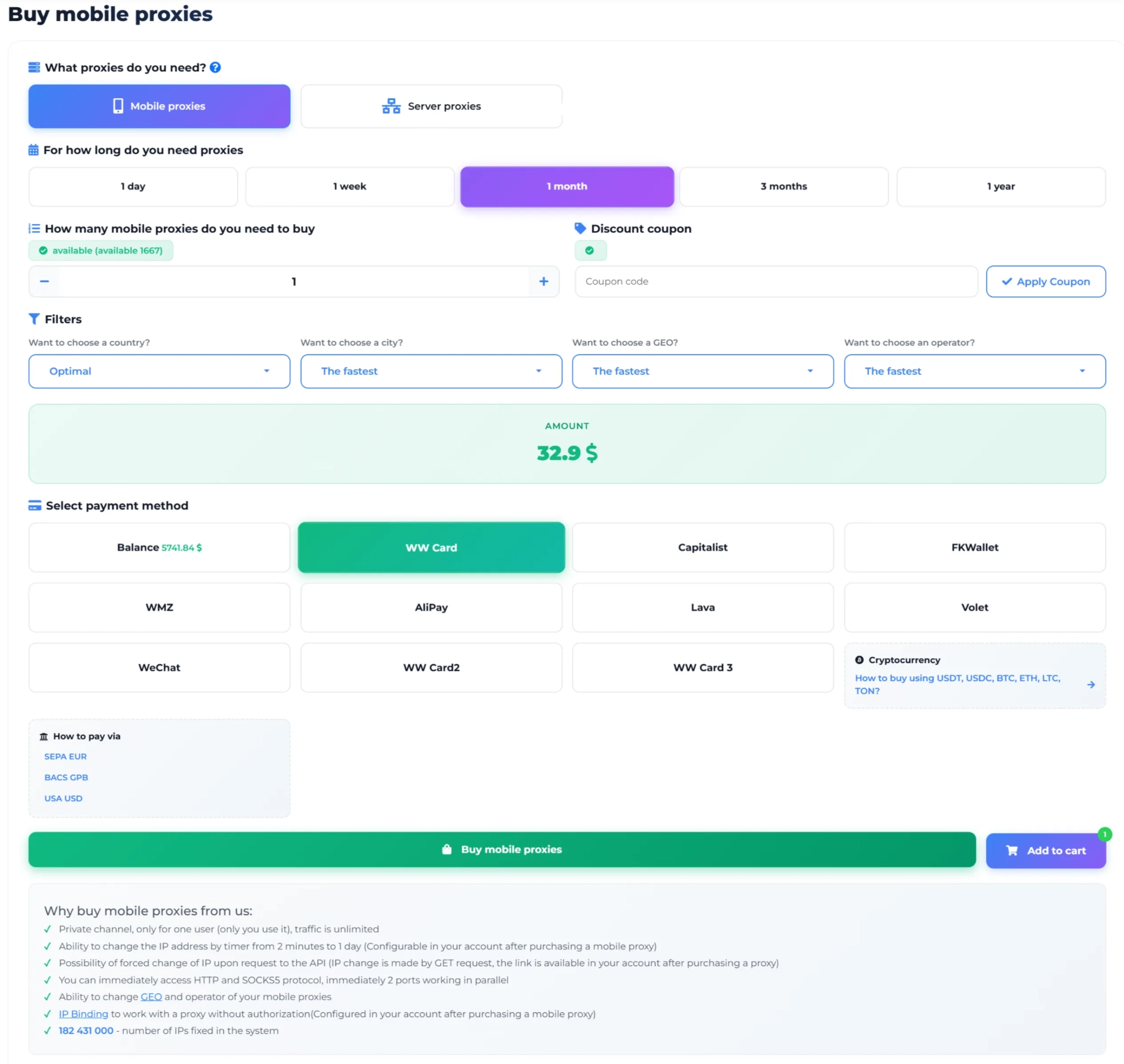
Step 1: Registration and Proxy Purchase
Open the MobileProxy.Space website and click "Sign Up" to create an account.
After registration, go to your dashboard. Select the desired country and rental period (1 day, 7 days, 30 days, 3 months, or 1 year), then complete the purchase. A free trial is also available to test the service before buying.
Step 2: Getting Connection Details
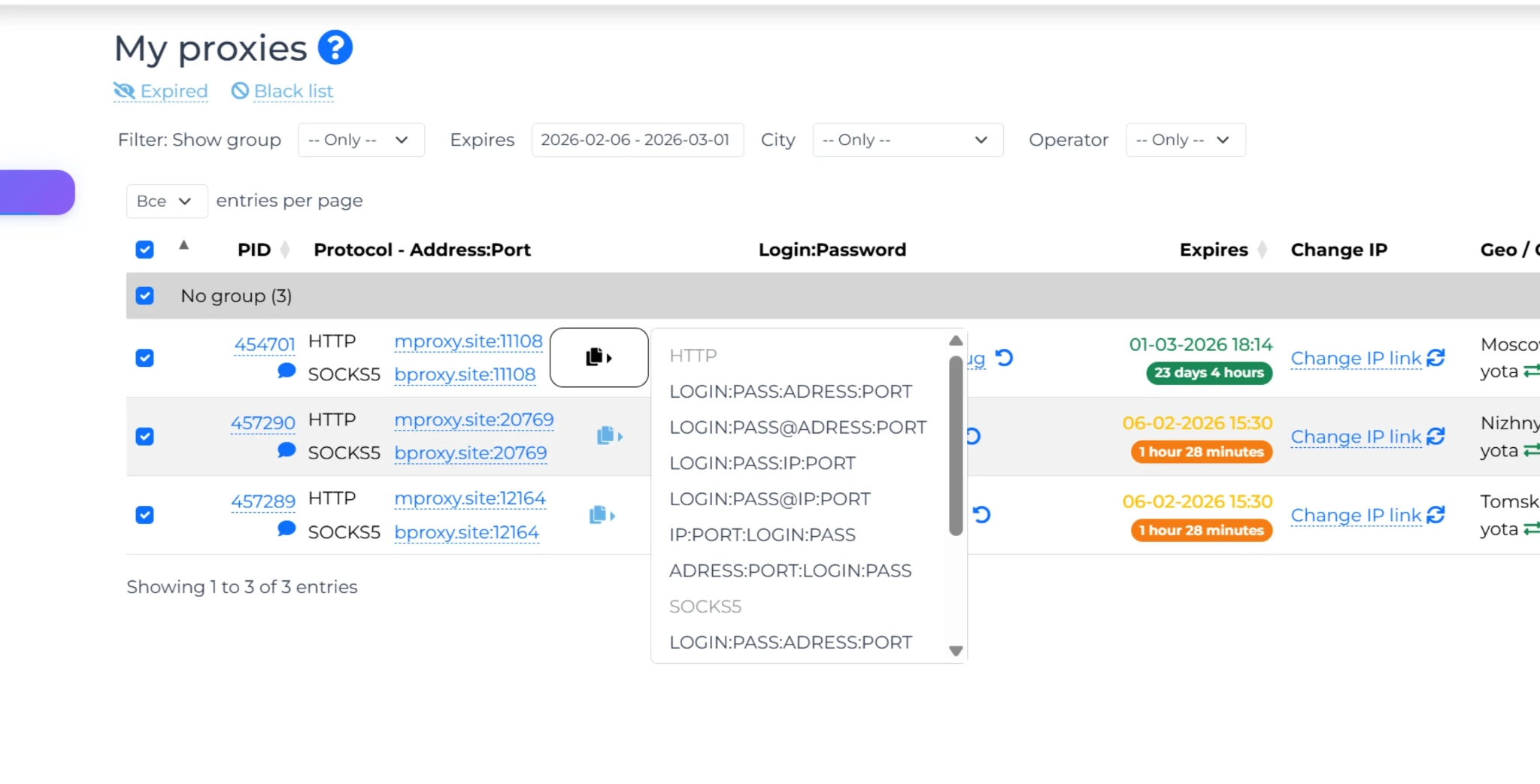
In your dashboard, locate your active proxy. You will see all the necessary connection details:
- HTTP Host: mproxy.site
- SOCKS5 Host: bproxy.site
- Port: displayed in the dashboard for each proxy
- Login: your proxy username
- Password: your proxy password
The dashboard also provides an IP change link (API URL) that allows you to instantly rotate your IP address at any time.
Step 3: Opening XLogin and Configuring Proxy
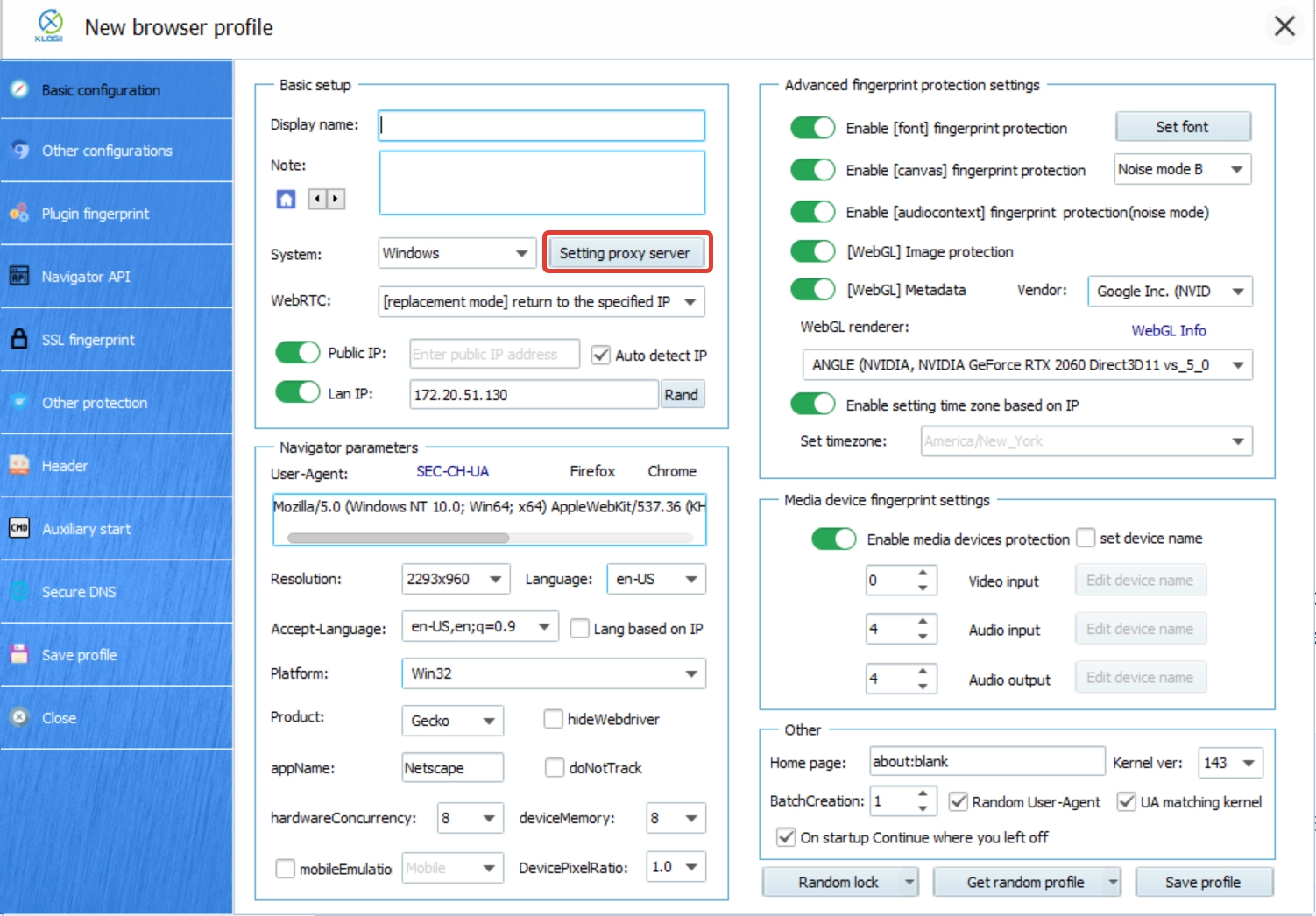
Open XLogin and create a new browser profile or select an existing one. Click "Setting proxy server" to open the proxy configuration window.
Step 4: Entering Proxy Settings
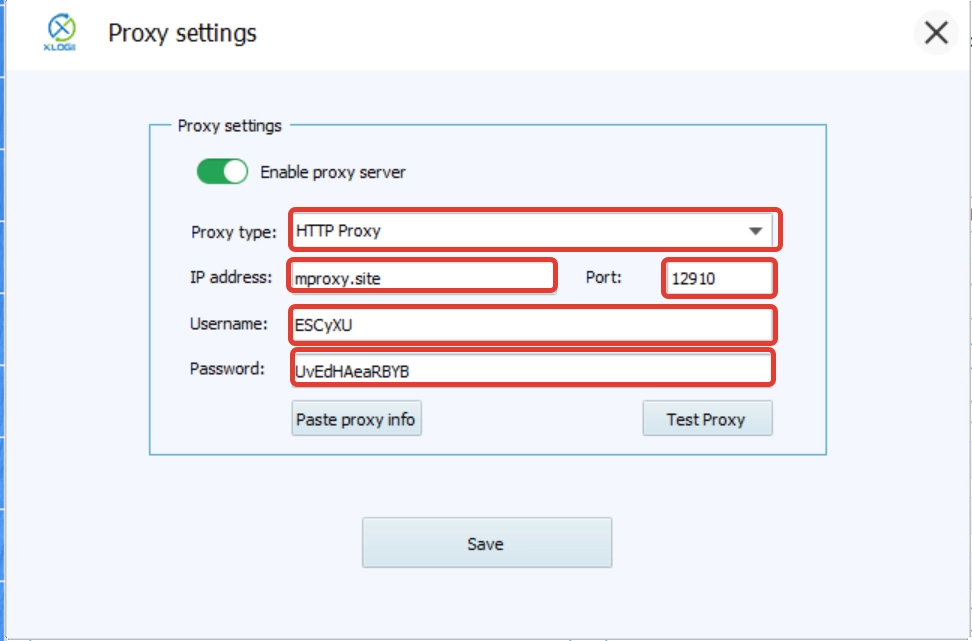
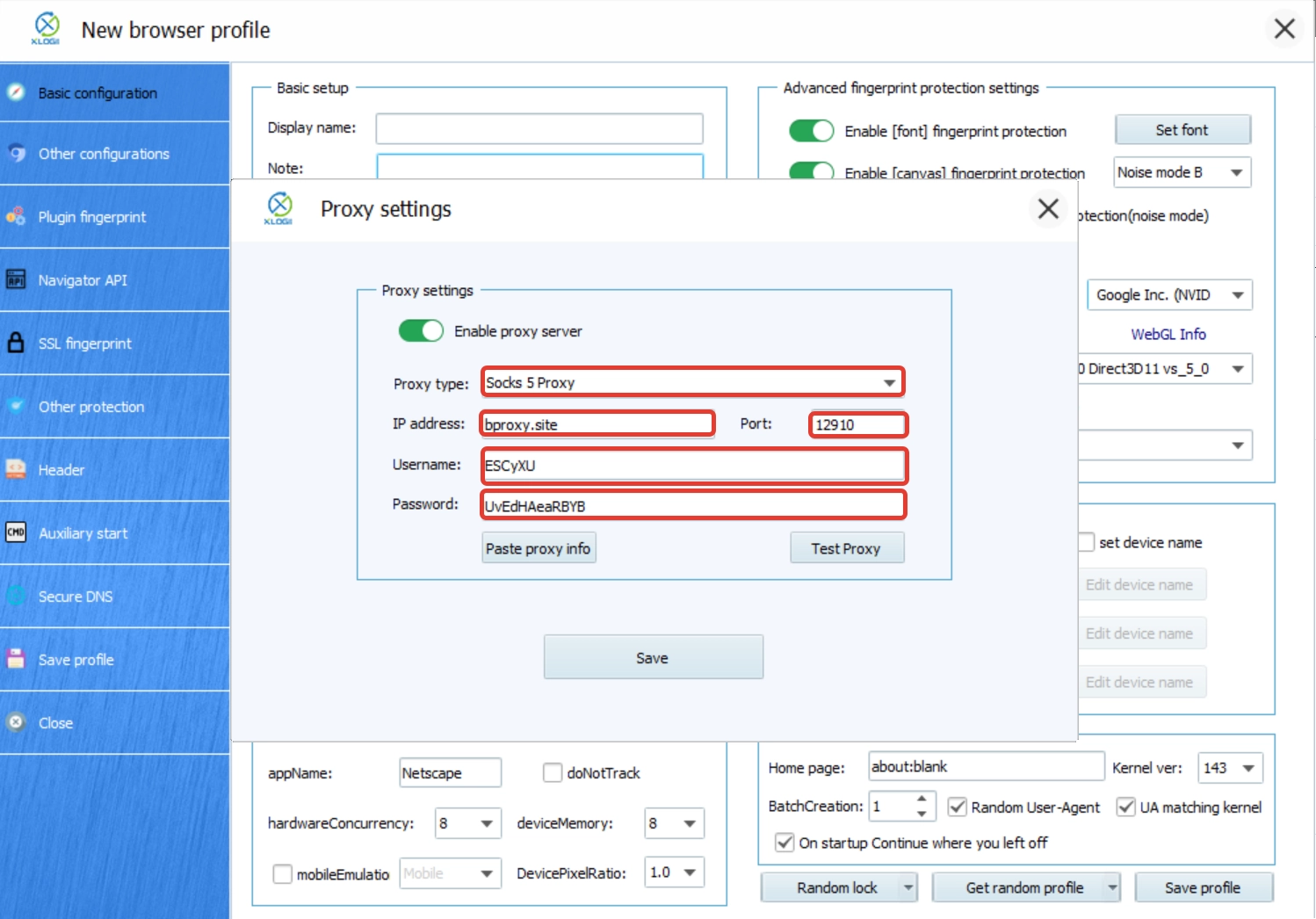
In the proxy settings window, enter the connection details using your MobileProxy.Space credentials.
For HTTP Proxy:
- Proxy Type: HTTP
- IP Address: mproxy.site
- Port: your port number from the MobileProxy.Space dashboard
- Username: your proxy login
- Password: your proxy password
Quick paste format: mproxy.site:Port:Username:Password
For SOCKS5 Proxy:
- Proxy Type: SOCKS5
- IP Address: bproxy.site
- Port: your port number from the MobileProxy.Space dashboard
- Username: your proxy login
- Password: your proxy password
Quick paste format: bproxy.site:Port:Username:Password
Step 5: Testing and Saving Settings
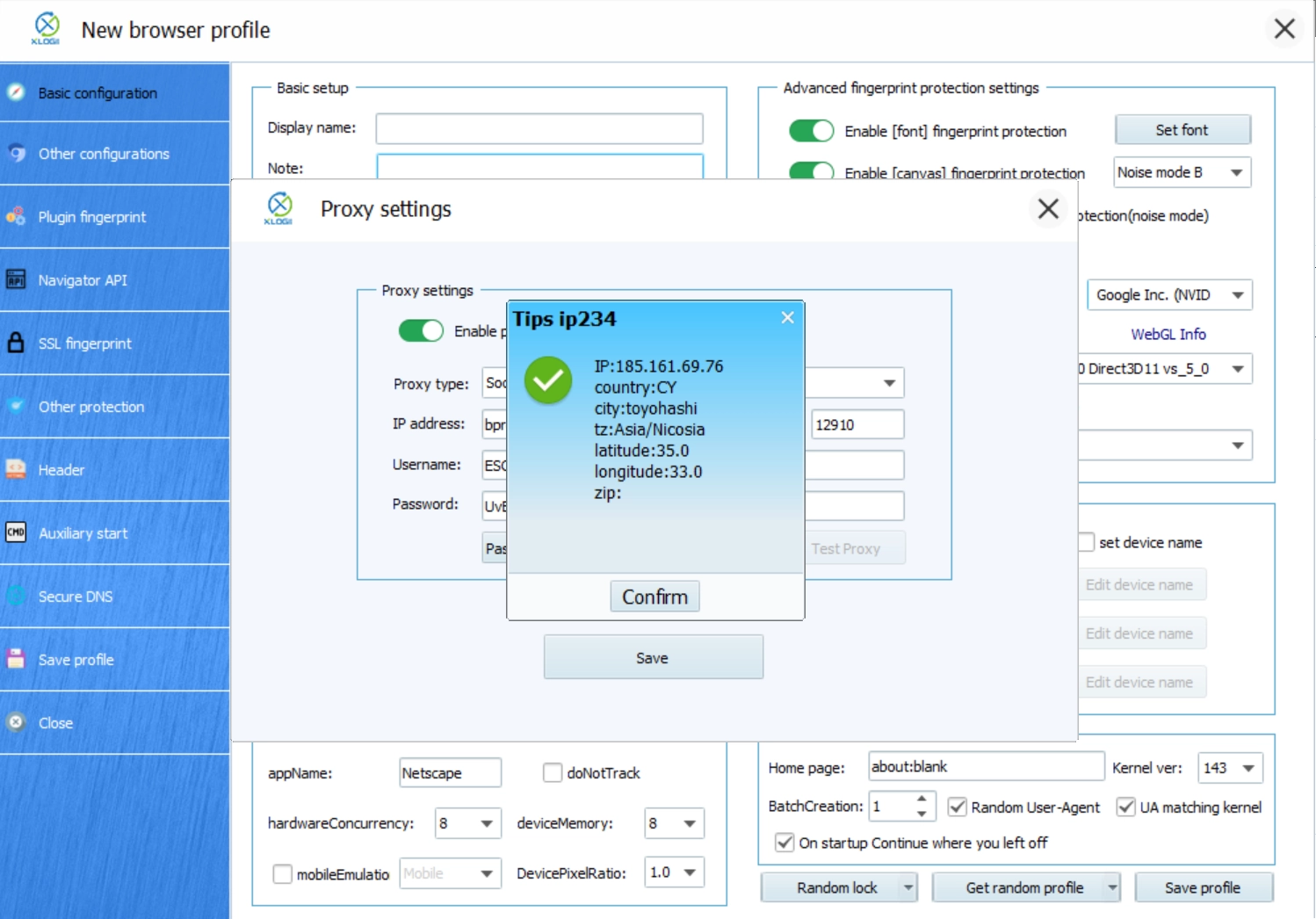
Click "Test Proxy". If the connection is successful, XLogin will display proxy information including the country and IP address. Click "Save" to apply the settings.
You can now open the browser profile and start working through your private mobile proxy.
IP Rotation and Additional Features
MobileProxy.Space provides flexible IP rotation options. You can change your IP address at any time using several methods:
- IP change button directly in the MobileProxy.Space dashboard
- API link for automated IP rotation (ideal for scripts and automation tools)
- Timer-based rotation — set automatic IP change intervals in the dashboard settings
Each proxy from MobileProxy.Space is a private dedicated channel that is never shared with other users. This ensures maximum anonymity, stable connection speed of 3–30 Mb/s, and high trust level of mobile IP addresses.
MobileProxy.Space supports proxies in over 45 countries including USA, UK, Germany, France, Canada, Turkey, India, Brazil, and many more. You can switch between countries and mobile operators directly from your dashboard without purchasing a new proxy.